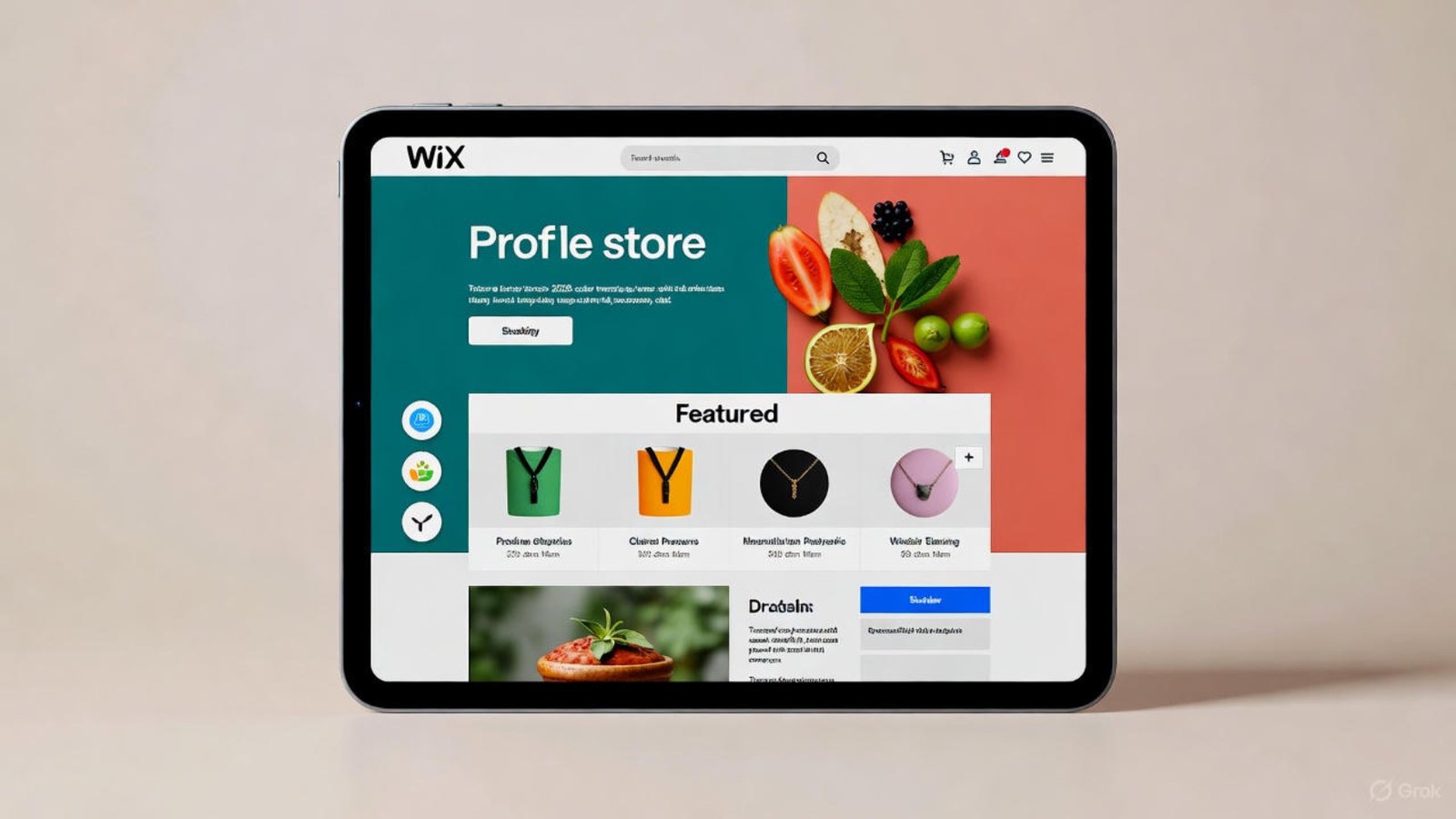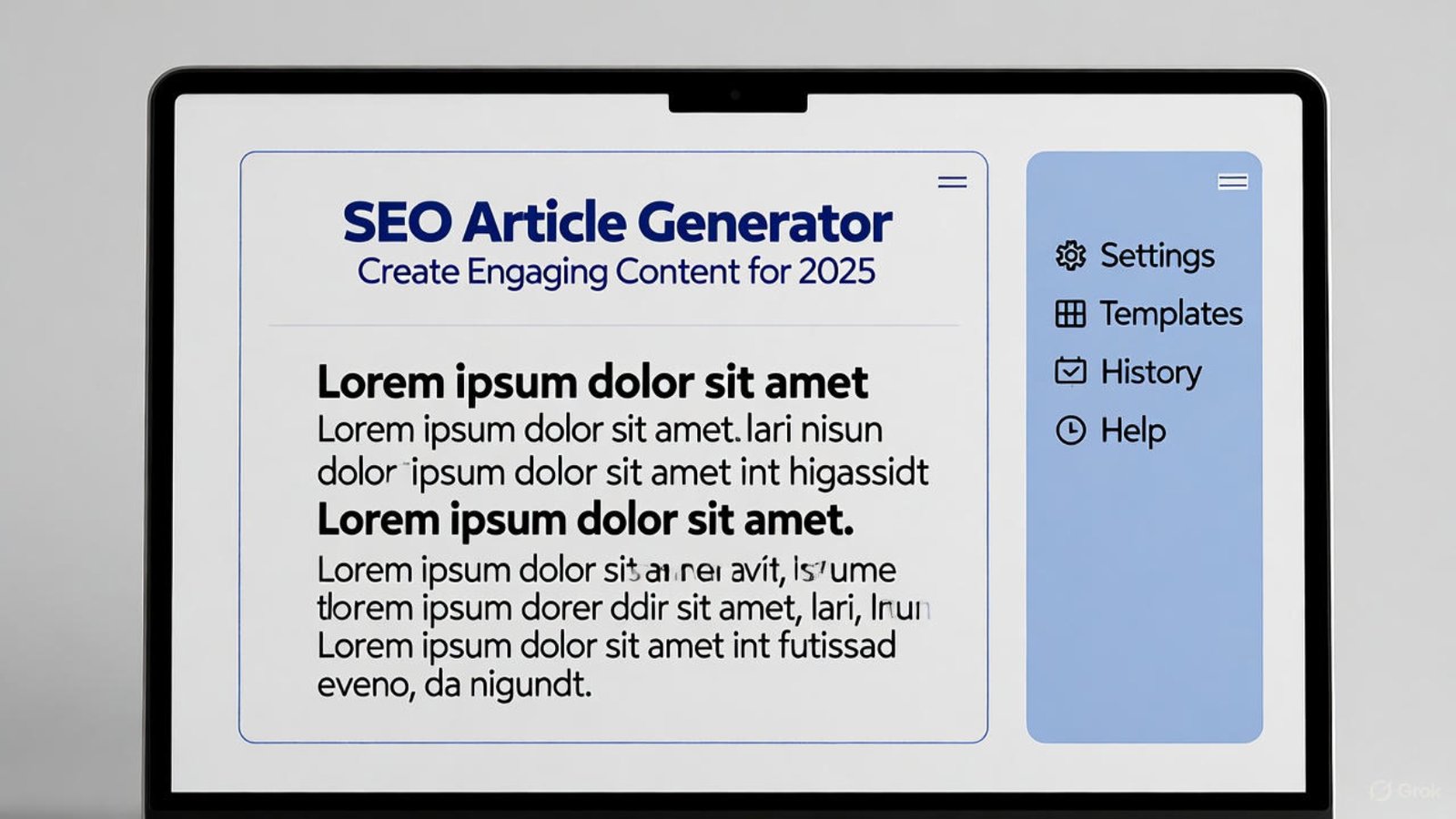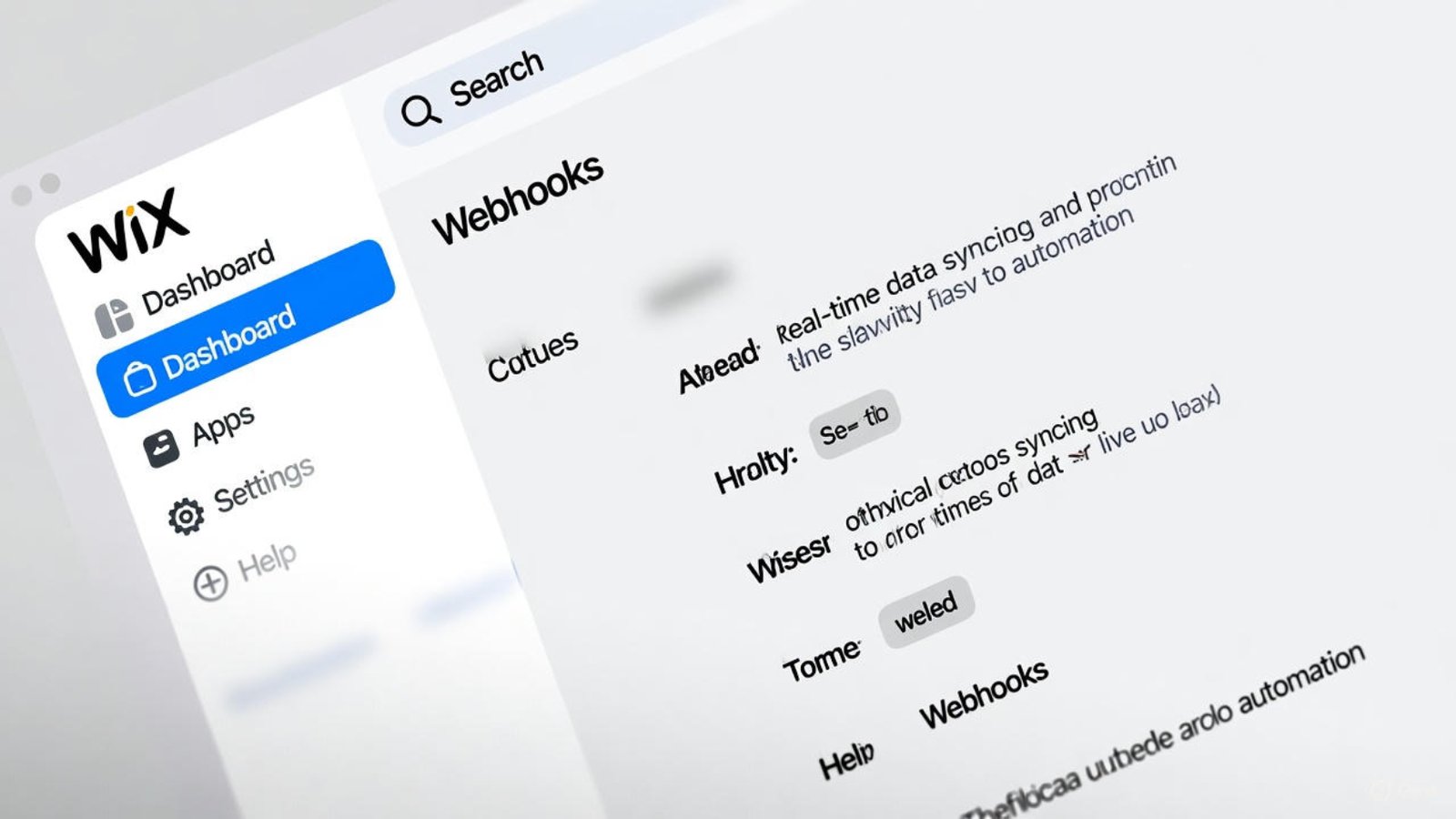


Designer fixing Wix SEO roadblocks on laptop

Fix Wix SEO Roadblocks That Kill Traffic: 2025 Wins

Traffic drops can hurt your business. Many Wix users face issues that stop visitors from finding their sites in 2025, often due to simple mistakes like slow pages or weak keywords. This guide shares practical fixes from designers to overcome these challenges and boost your site’s visibility. Let’s turn your Wix site into a traffic winner step by step.

Recognizing Hidden Challenges in 2025

Issues often hide in plain sight. For example, unoptimized images slow down pages, pushing users away and lowering search rankings. Plus, overlooking mobile design creates another hurdle since phone searches dominate now.

Designers spot these patterns daily. A quick check with tools like Google PageSpeed Insights can reveal where to start fixing your site.

Tackling Slow Loading Issues

Speed is a top priority. Heavy images or extra apps can drag your site down, increasing bounce rates and hurting rankings in 2025 with Google’s updated standards.

Start by compressing images using Wix’s built-in tool to shrink files while keeping quality. Remove unused apps from your dashboard too. This simple change can lift your traffic by 20 percent or more.

Improving Mobile Experience

Your site needs to shine on all devices. Skipping mobile tweaks leads to cramped text or broken buttons, frustrating users and dropping your rank.

Switch to a responsive Wix template if needed, then test with Google’s Mobile-Friendly Tool. Shorten paragraphs and enlarge touch targets for a smoother flow. These adjustments keep visitors engaged longer.

Mastering Keyword Use

Keywords guide search engines to your site. Overusing them or missing them altogether can hide your content, a common pitfall for many.

Research with free tools like Google Keyword Planner to find low-competition phrases. Place them naturally in titles and the first paragraph, like “affordable design tips” for logo makers. This strategy pulls in targeted visitors.

Enhancing Images with Alt Text

Images add appeal, but without alt text, they become invisible to search engines. This oversight affects accessibility and voice search results in 2025.

Add clear alt text now. For a chair photo, use “cozy blue armchair for offices” with a relevant phrase if it fits. Wix’s editor makes this easy—click and type. Check mrwebapp.com/image-optimizer for bulk solutions.

Building Strong Internal Links

Links connect your pages for users and crawlers. Weak internal linking isolates content, letting search engines miss parts of your site and cut traffic.

Create a simple structure. Link from your homepage to key pages and add “related posts” at article ends with text like “explore web tips.” Wix’s editor simplifies this process. Spread authority across your site this way.

Optimizing Meta Tags and Titles

Meta tags shape how your site appears in searches. Vague ones lead to fewer clicks, a frequent issue with default Wix settings.

Craft titles under 60 characters starting with your focus, like “Wix SEO Roadblocks: 2025 Tips.” Write meta descriptions of 150-160 characters with a call to action. Update these in Wix SEO settings to boost click-through rates.

Keeping Content Fresh

Old content loses appeal. Stale pages signal irrelevance, dropping you in rankings as 2025 emphasizes fresh, useful info.

Refresh blogs with new stats or tips and add dates to show updates. Aim for one new post monthly. Designers can update portfolios with recent work. This keeps your site active and trusted.

Visualizing Your Progress

A picture can inspire action. Here’s a spot for an image to highlight your fixes:

Image Placeholder Alt Text: Designer fixing Wix SEO roadblocks on laptop Caption: A designer tackling site issues for better traffic Description: This image shows a designer addressing Wix SEO roadblocks with dashboard tools, key for traffic growth in 2025.

Images like this motivate changes. They show how small tweaks improve your site.

Building Backlinks for Credibility

External links boost trust. Skipping them makes your site seem less reliable, a broader challenge in 2025 where quality matters.

Guest post on related blogs or partner locally. Send a friendly email offering value, like “free design check.” Track results with HubSpot’s backlink guide. Steady efforts bring referral traffic.

Leveraging Wix Tools

Wix offers built-in help. Ignoring these features, like unverified sites, lets search engines overlook you, a common oversight.

Run the SEO Wiz today. Connect to Google Search Console for alerts and submit your sitemap. Enable HTTPS for security. Explore Wix’s SEO hub for more. These tools make fixes easy.

Tracking Your Success

Monitor your progress. Without metrics, you can’t tell if changes work, prolonging site issues.

Set up Google Analytics on Wix. Check organic visits and bounce rates monthly. If speed improves but traffic lags, adjust keywords next. Regular checks ensure lasting wins.

FAQs About Site Improvements

What causes the biggest site issues? Slow loads and bad mobile design lead, but Wix tools fix them fast.

How often should I check my site? A monthly scan keeps problems small and traffic growing.

Do images affect my rankings? Yes, without alt text, they hide from searches, but descriptions fix that.

Can I improve my site without tech skills? Yes, Wix’s dashboard handles most updates for everyone.

What’s new for site rankings in 2025? AI content checks and faster performance matter more, so stay updated.

Ready to Boost Your Wix Site in 2025?

Overcome those site challenges today and watch traffic soar. These designer tips make ranking higher simple and effective. Visit mrwebapp.com for free tools and guides to start now!

ChatGPT 5 free thinking mode on a laptop screen

Use ChatGPT 5 Free Thinking Mode All Day 2025

Staying productive with ChatGPT 5 thinking mode can change your workday in 2025. This handy tool helps creators, business owners, and startups dive deep into ideas and solve problems easily. Let’s explore how you can use ChatGPT 5 thinking mode all day to spark creativity and get more done.

What Makes ChatGPT 5 Thinking Mode Stand Out?

ChatGPT 5 thinking mode shines by taking extra time to process tough tasks. It delivers thoughtful answers that spark new ideas, unlike quick responses. This feature suits anyone looking to tackle big projects with care.

Plus, it fits all kinds of work. Whether you run a small shop or design websites, ChatGPT 5 thinking mode adjusts to your needs and keeps things flowing.

Getting Started with ChatGPT 5 Thinking Mode

Begin by turning on the mode. Open the ChatGPT app or site, spot the thinking mode button, and click it to start. This quick step unlocks ChatGPT 5 thinking mode for your day.

Also, ensure a steady internet link. A strong connection keeps ChatGPT 5 thinking mode running smoothly, so you can focus on your tasks. Check aounraza.mrwebapp.com/setup-guide for more help.

Planning Your Day with Thinking Mode

Kick off your morning with ChatGPT 5 thinking mode. Ask it to list your tasks or brainstorm project ideas, saving you time right away. This sets a solid pace for the day.

Then, take short breaks. Step away after using ChatGPT 5 thinking mode for an hour to refresh and return with new energy.

Sparking Creativity with ChatGPT 5 Thinking Mode

Unleash your imagination with this tool. Use ChatGPT 5 thinking mode to suggest fresh designs or marketing plans that match your style. Its deep insights fuel your creative spark.

Moreover, try broad questions. For instance, “What fun themes work for my next event?” helps ChatGPT 5 thinking mode offer exciting ideas.

Solving Challenges All Day

Face a roadblock? Turn to ChatGPT 5 thinking mode for help. It breaks down issues like website glitches or customer queries into clear steps. This keeps your day on track.

Additionally, revisit tricky spots later. If an answer feels off, ask again when you’re free, and ChatGPT 5 thinking mode refines its response.

Managing Time with Thinking Mode

Keep your schedule balanced. Set specific times for ChatGPT 5 thinking mode, like mornings for planning and afternoons for fixes. This structure boosts your output.

Also, don’t overdo it. Limit sessions to 30 minutes to stay fresh, ensuring ChatGPT 5 thinking mode works well all day.

Adding a Visual Boost

Images make your work pop. Here’s a spot for a picture to enhance your use of ChatGPT 5 thinking mode:

Image Placeholder
Alt Text: ChatGPT 5 thinking mode on a laptop screen
Caption: A laptop showing ChatGPT 5 thinking mode at work
Description: This image highlights a laptop with ChatGPT 5 thinking mode, offering creative solutions for productivity in 2025.

Pictures like this inspire action. They show how ChatGPT 5 thinking mode fits into your routine.

Linking with Other Tools

Blend ChatGPT 5 thinking mode into your setup. Pair it with Google Docs for writing or Wix for website ideas. This saves effort.

Furthermore, check out add-ons. Some apps sync with ChatGPT 5 thinking mode to streamline projects. Explore aounraza.mrwebapp.com/tools-hub for options.

Staying Within Free Limits

Watch your usage to stay free. ChatGPT 5 thinking mode has a daily cap, so track your credits to keep it active. This lets you use it all day.

Then, adapt as needed. If you’re close to the limit, switch to fast mode for easy tasks, saving ChatGPT 5 thinking mode for bigger needs.

Making the Most of Answers

Ask clear questions. Tell ChatGPT 5 thinking mode what you want, like “Plan my week of posts,” for the best results. Good prompts lead to great answers.

Also, tweak the output. Spend a minute adjusting suggestions to match your goals with ChatGPT 5 thinking mode.

Learning from Others’ Tips

Join online communities for advice. People share how they use ChatGPT 5 thinking mode all day, giving you new tricks. This support lifts your skills.

Plus, test their ideas. Someone might suggest morning brainstorming, which you can try with ChatGPT 5 thinking mode.

Keeping Up with 2025 Trends

Stay current with updates. ChatGPT 5 thinking mode may add new features in 2025, so check for changes regularly. This keeps your work ahead.

Also, follow industry news. Sites like HubSpot or Wikipedia offer insights to enhance your use.

FAQs About ChatGPT 5 Thinking Mode

How do I start ChatGPT 5 thinking mode?
Open the app, find the thinking mode button, and click it to begin using ChatGPT 5 thinking mode right away.

Can I use it all day without cost?
Yes, but keep an eye on your credit limit to enjoy ChatGPT 5 thinking mode all day.

What if it feels slow?
Check your internet and restart the app to keep ChatGPT 5 thinking mode running well.

Does it work for group tasks?
Sure, share its ideas with your team to plan better using ChatGPT 5 thinking mode.

Where can I find more help?
Look at WordPress or online forums for extra tips on using it.

Start Using ChatGPT 5 Thinking Mode Today

Ready to power your day with ChatGPT 5 thinking mode in 2025? These steps can boost your productivity and ideas. Visit aounraza.mrwebapp.com for more tools and resources to begin now!

Wix store with easy fixes on a tablet screen

Why Your Wix Store Isn’t Selling: Easy Fixes a Designer Uses in 2026

Your Wix store holds your dreams, but if sales aren’t coming, it can feel frustrating. Designers in 2026 use simple tricks to turn things around and boost your Wix store’s success. This article shares practical fixes to help you understand why your Wix store isn’t selling and how to make it thrive.

Common Reasons Your Store Struggles

Sales might be slow for a few reasons. Maybe your product pages lack clear photos or your checkout feels confusing to customers. Additionally, slow loading times often push visitors away from your Wix store.

Designers notice these issues first. They check how your store looks and works to spot what needs a quick fix.

Fixing Slow Loading Times

Speed matters for your Wix store. A designer compresses images and removes heavy files to make pages load fast in 2026. Next, they use Wix’s built-in tools to optimize performance.

This change keeps customers happy. A fast store encourages them to stay and buy more often.

Improving Product Photos

Great photos sell products. Designers suggest using bright, clear images that show your items from all angles for your Wix store. They also add a consistent style, like soft lighting, to make everything look professional.

Furthermore, include zoom options. This helps customers see details, boosting trust in your store.

Simplifying the Checkout Process

A tricky checkout stops sales. Designers streamline the steps, removing extra fields that annoy buyers on your Wix store. They also add a progress bar to show how close customers are to finishing.

Moreover, they test it on mobile. A smooth checkout on your store works well for everyone, even on phones.

Adding Clear Calls to Action

Buttons guide buyers. Designers place bright “Add to Cart” or “Buy Now” buttons in easy spots on your Wix store. They use colors like green or orange to make them stand out.

Also, they keep text simple. Clear calls to action on your Wix store tell customers what to do next.

Enhancing Mobile Experience

More people shop on phones. Designers ensure your Wix store looks good on small screens, with big buttons and readable text. They adjust layouts so nothing feels cramped.

Additionally, they test navigation. A mobile-friendly store keeps customers browsing longer.

Optimizing for Search Engines

Visibility drives traffic. Designers add keywords like “Wix store” to page titles and descriptions. They also link to helpful pages on aounraza.mrwebapp.com/seo-guide.

Furthermore, they update content regularly. A search-friendly attracts more visitors in 2026.

Adding Trust Signals

Customers buy from trusted stores. Designers add customer reviews or security badges to your Wix store. They place these near the checkout to build confidence.

Next, they show contact info. Clear trust signals on your store make buyers feel safe, as noted on Wix.

Offering Promotions

Deals attract buyers. Designers suggest limited-time discounts or free shipping for your Wix store. They highlight these offers with eye-catching banners.

Also, they track what works. Smart promotions bring in more sales over time.

Learning from Analytics

Data shows what’s working. Designers use analytics to see which products sell and where visitors drop off on your Wix store. They adjust based on these insights.

Moreover, they check monthly. Regular reviews keep your Wix store growing strong in 2026.

FAQs

Why isn’t my Wix store getting sales?
It could be slow loading or unclear photos—try fixing those first with a designer’s help.

How long do fixes take to work?
You might see changes in a week if you update photos and speed, depending on traffic.

Can I fix my Wix store myself?
Yes, with Wix tools and guides from aounraza.mrwebapp.com/tutorials, it’s easy to start.

What if customers leave at checkout?
Simplify the steps and add a progress bar to keep them moving on your .

Where can I learn more tips?
Check HubSpot or aounraza.mrwebapp.com/design-tips for great ideas.

Start Boosting Your Wix Store Today

Ready to turn your Wix store into a sales machine in 2026? These fixes can help you connect with customers and grow your business. Visit aounraza.mrwebapp.com to explore tools and start making changes now!

Alternatives to struggling with ChatGPT 5 free quotas on a laptop screen

Struggling with ChatGPT 5 Free Quotas? Switch to These Alternatives Fast in 2026

Are you hitting limits with ChatGPT 5 free quotas and feeling stuck? Many creators and business owners face this issue, but don’t worry—there are fast solutions to keep your projects moving in 2026. This article explores practical alternatives to struggling with ChatGPT 5 free quotas, helping you stay productive without extra costs. Let’s find the right tools to support your work today!

Why ChatGPT 5 Free Quotas Can Hold You Back

ChatGPT 5 free quotas limit how much you can use the tool daily. If you rely on it for writing, brainstorming, or customer support, those caps can slow you down quickly. For example, you might run out of messages mid-project, leaving you frustrated.

Moreover, the free version often has delays during peak times. So, if you’re struggling with ChatGPT 5 free quotas, it’s time to look for options that fit your needs better.

Top Alternative Tools to Replace ChatGPT 5 Free

Several tools can step in when you’re struggling with ChatGPT 5 free quotas. One great choice is Grok from xAI, which offers flexible usage and creative responses for free users. Another option is Claude by Anthropic, known for clear answers and fewer limits on basic plans.

Additionally, check out Perplexity AI for real-time web searches and detailed outputs. These alternatives help you move past struggling with ChatGPT 5 free quotas and keep your workflow smooth in 2026.

How to Switch to Grok for Unlimited Creativity

Grok stands out as a solid replacement. It lets you ask questions and get helpful replies without hitting strict quotas, perfect if you’re struggling with ChatGPT 5 free quotas. You can access it on mrwebapp.com/ai-tools to start exploring its features.

Next, sign up with your email and dive into its interface. This tool supports brainstorming sessions and content ideas, making it a go-to for creators in 2026.

Using Claude to Avoid Quota Limits

Claude offers a friendly alternative. It provides thoughtful responses and works well for long conversations, helping you avoid struggling with ChatGPT 5 free quotas. Visit Anthropic’s site to set up your free account.

Furthermore, it handles multiple tasks like drafting emails or editing text. This makes Claude a reliable choice for busy professionals looking to stay productive.

Exploring Perplexity AI for Real-Time Help

Perplexity AI brings something new. It searches the web in real time and gives you detailed answers, which is great if you’re struggling with ChatGPT 5 free quotas. You can try it out at perplexity.ai with a free plan.

Also, it’s ideal for research or quick fact-checking. This tool keeps your projects on track without the limits you might face elsewhere.

Setting Up Alternatives on Your Devices

Switching is easy with the right steps. Download the app or use the web version of your chosen tool, ensuring it works on your phone or laptop. For instance, if you’re struggling with ChatGPT 5 free quotas, set up Grok via mrwebapp.com/setup-guide.

Then, test it with a small task like writing a post. This helps you get comfortable and ready to use it daily in 2026.

Comparing Costs and Features

Free alternatives vary in what they offer. Grok and Claude provide solid free tiers, while Perplexity adds web search benefits, all helping you stop struggling with ChatGPT 5 free quotas. Compare their features to see what fits your budget.

Moreover, look at how often they update. Tools that improve regularly, like those mentioned, keep you ahead in 2026, as noted on Wikipedia.

Integrating Alternatives into Your Workflow

Make the switch smooth by adding tools to your routine. Use Grok for creative writing or Claude for customer replies, reducing the need to deal with struggling with ChatGPT 5 free quotas. Link them to apps like Google Docs for easy access.

Additionally, set a schedule to test each tool. This ensures you find the best fit for your daily tasks, boosting efficiency next year.

Handling Transition Challenges

Change can feel tricky at first. If a tool feels different, start with simple tasks to get used to it while you’re struggling with ChatGPT 5 free quotas. Ask support teams for help if needed.

Then, give it a week to adjust. With practice, you’ll find these alternatives become second nature by 2026.

Staying Updated with 2026 AI Trends

AI tools evolve fast. Keep an eye on updates for Grok, Claude, or Perplexity to stay ahead, especially if you’re struggling with ChatGPT 5 free quotas. Follow HubSpot for the latest AI news.

Also, join online communities to learn tips. This keeps your workflow modern and effective throughout 2026.

Measuring Your Success with New Tools

Track how well these tools work. Note how many tasks you complete without hitting limits, moving past struggling with ChatGPT 5 free quotas. Check performance weekly to see improvements.

Furthermore, ask your team for feedback. This helps you refine your setup, ensuring success in 2026, with insights from aounraza.mrwebapp.com.

FAQs About Switching from ChatGPT 5 Free

What if I hit limits with ChatGPT 5 free?
Try Grok or Claude—they offer more flexibility without strict caps.

How do I start with these alternatives?
Sign up on their sites and test with small tasks to get going fast.

Will these tools cost me money?
Most have free plans, perfect for replacing ChatGPT 5 free quotas.

Can I use them for my business?
Yes, they handle writing, research, and more for startups and creators.

How do I know which tool is best?
Test each for a week to see which fits your needs in 2026.

Start Exploring Alternatives Today

Ready to move past struggling with ChatGPT 5 free quotas in 2026? These tools can keep your work flowing without limits. Visit aounraza.mrwebapp.com to find resources and start your switch now!

or read more like seo article generator

Wix portfolio with retro touches on a laptop screen

Make Your Wix Portfolio Pop with Retro Touches for Creative Pros in 2025

Your Wix portfolio is your showcase to the world. Adding retro touches can make it unique and grab attention in 2025, especially for creative pros like designers and artists. This article guides you through simple steps to refresh your Wix portfolio with vintage vibes that impress clients. So, let’s dive into how a Wix portfolio can shine with a modern twist on classic styles.

Why Retro Touches Work for You

Retro styles are making a comeback. People love the warm, nostalgic feel they bring, which can set your Wix portfolio apart from sleek, modern designs. Moreover, clients often connect with brands that feel personal and memorable.

This trend fits creative pros perfectly. For instance, a photographer or illustrator can use retro colors and fonts to highlight their work, making their Wix portfolio more inviting in 2025.

Choosing the Right Retro Elements

Start with colors. Think bold hues like mustard yellow or soft pastels, which were big in the 70s and 80s, to give your Wix portfolio a vintage look. Next, pick fonts that feel old-school, like typewriter styles or cursive scripts.

Additionally, add patterns like polka dots or geometric shapes. These elements work well on Wix and create a fun backdrop for your projects, boosting your Wix portfolio’s appeal.

Setting Up Your Wix Portfolio with Retro Vibes

Begin with a Wix template. Look for one with a classic layout, then tweak it to add retro touches that suit your style. For example, adjust the header to include a vintage logo or border.

Then, use Wix’s drag-and-drop tools to place your work. Arrange photos or artwork in a grid with retro frames, ensuring your Wix portfolio looks organized yet playful. Also, check mrwebapp.com/design-tools for extra tips on layout ideas.

Adding Retro Fonts and Text Styles

Fonts set the tone. Choose a retro font from Wix’s library, like something inspired by old movie posters, to make your Wix portfolio stand out. Place these fonts on headings or captions to draw eyes.

Furthermore, add subtle text effects. A slight shadow or outline can give a 3D retro feel, enhancing your Wix portfolio without overwhelming it. Experiment until it feels right for your brand.

Using Retro Colors and Images

Colors bring life to your Wix portfolio. Use a mix of earthy tones and bright pops, like orange or teal, to mimic vintage ads from the past. Apply these to backgrounds or buttons for a cohesive look.

Next, add retro images. Upload photos with a grainy filter or find free vintage clipart online, then place them as accents. This keeps your Wix portfolio fresh and aligned with 2025 trends, as noted on Wix.

Creating a Retro Navigation Menu

A navigation menu guides visitors. Design it with rounded buttons or a horizontal bar in a retro shade like olive green for your Wix portfolio. Label each section clearly, like “Work” or “About,” with a playful font.

Also, ensure it’s easy to use. Test the menu on mobile devices to keep your Wix portfolio accessible, helping clients find your best projects quickly. Resources like mrwebapp.com/navigation-guide can assist here.

Adding Interactive Retro Features

Interaction keeps people engaged. Add a hover effect where images shift to a sepia tone, giving your Wix portfolio a vintage pop when users explore. Also, include a simple contact form with a retro border.

Moreover, link to your social media with retro-style icons. This connects your Wix portfolio to your online presence, as suggested by HubSpot. It’s a small touch that builds trust.

Optimizing Your Wix Portfolio for 2025

Speed matters for rankings. Optimize images and reduce load times to keep your Wix portfolio fast, which Google loves. Then, use keywords like “Wix portfolio” in your page titles and descriptions.

Additionally, update regularly. Add new projects or adjust retro elements to stay current in 2025. Check mrwebapp.com/seo-tips for more ways to boost visibility.

Getting Feedback on Your Retro Design

Show your Wix portfolio to friends or clients. Ask what they like about the retro touches and where it needs work. This helps you refine the design for better impact.

Then, make changes based on their input. A fresh perspective can turn your Wix portfolio into a client magnet, especially with trends from WordPress showing user feedback boosts engagement.

FAQs About Building a Wix Portfolio

What makes a Wix portfolio look retro?
It’s all about bold colors, old-school fonts, and fun patterns that feel nostalgic and fresh.

How long does it take to add retro touches?
You can do it in a few hours with Wix’s easy tools if you plan your design first.

Can I use retro styles for any creative field?
Yes, photographers, artists, and designers can all make their Wix portfolio pop with vintage vibes.

Do retro designs hurt my Wix portfolio’s rankings?
Not if you optimize images and keywords, keeping it fast and search-friendly.

Where can I find retro inspiration?
Check old magazines or sites like Wikipedia for ideas to start with.

Start Creating Your Standout Wix Portfolio Today

Ready to make your portfolio shine with retro touches in 2025? These ideas can help you impress clients and grow your creative business. Visit aounraza.mrwebapp.com to discover tools and resources that simplify the process and get started now!

SEO article generator tool interface on a laptop

Create 10x More Content Without Hiring: SEO Article Generator Tool Tips for 2025

Content fuels online success. Businesses need fresh, engaging articles to attract visitors and rank higher on search engines. However, creating high-quality content consistently can feel overwhelming without a big team. That’s where an SEO article generator comes in. These tools help you produce more content faster, saving time and money. In 2025, smart use of SEO article generators can transform your content strategy. This article shares practical tips to maximize these tools for better rankings and efficiency.

Why Use an SEO Article Generator in 2025?

Content demands are growing. Search engines like Google prioritize fresh, relevant content, and businesses must keep up. An SEO article generator creates articles quickly, letting you focus on strategy instead of writing from scratch. These tools use advanced algorithms to craft content optimized for search engines, ensuring your site stays competitive.

Moreover, they save resources. Instead of hiring more writers, you can produce blog posts, product descriptions, or social media content in minutes. For example, tools like those offered by mrwebapp.com streamline the process, making it easy to scale content creation without breaking the bank.

Choosing the Right SEO Article Generator

Not all tools are equal. A good SEO article generator should be user-friendly, produce readable content, and align with your goals. First, look for tools that support keyword optimization. This ensures your articles rank well on search engines. Next, check if the tool allows customization. You want content that matches your brand’s voice.

Additionally, consider integration with platforms like WordPress or Shopify. These integrations make publishing seamless. Finally, pick a tool with analytics to track performance. Mrwebapp.com offers solutions with these features, helping you create content that drives results.

Optimizing Content with an SEO Article Generator

To get the most from your SEO article generator, focus on keyword strategy. Start by researching keywords with tools like mrwebapp.com’s keyword planner. Choose terms with high search volume but low competition. Then, input these keywords into your generator to create targeted content.

Next, ensure the tool balances keyword density. Aim for 1%–1.5% to avoid overstuffing, which can hurt rankings. Also, use related keywords to make content more natural. For instance, alongside “SEO article generator,” include phrases like “content creation tool” or “automated writing software.”

Structuring Articles for Maximum Impact

Structure matters for both readers and search engines. An SEO article generator can help create well-organized content. Always include a clear introduction that hooks readers. Then, use subheadings (like H2 and H3) to break up text and improve readability.

For example, short paragraphs keep readers engaged. Tools like those on mrwebapp.com can generate articles with proper formatting, including bullet points or numbered lists. This makes content easy to scan, which Google rewards. Also, ensure your conclusion summarizes key points and includes a call to action.

Enhancing Readability and Engagement

Readable content keeps visitors on your site longer. An SEO article generator should produce simple, clear text. Avoid complex words or jargon. Instead, use short sentences and transition words like “however,” “next,” or “for example” to guide readers smoothly.

Additionally, engage your audience with a conversational tone. Ask questions or share relatable examples. For instance, imagine a small business owner using an SEO article generator to create 10 blog posts in a day. This saves hours of work, letting them focus on customers.

Incorporating Visuals with SEO Article Generators

Visuals boost engagement, and many SEO article generators suggest image placements. Adding relevant images makes articles more appealing. Below is a placeholder for an image you can use:

Image Placeholder
Alt Text: SEO article generator creating content on a laptop screen
Caption: A laptop displaying an SEO article generator in action
Description: This image shows an SEO article generator producing optimized content on a laptop, helping businesses create 10x more content efficiently in 2025.

When adding images, use descriptive alt text with your focus keyword. This improves accessibility and SEO. Tools like those on HubSpot can guide you on optimizing visuals for better rankings.

Avoiding Common Mistakes with SEO Article Generators

While SEO article generators are powerful, misuse can harm your rankings. First, avoid over-reliance on automation. Always review generated content for accuracy and brand alignment. For example, a generic article might not suit your niche audience.

Next, don’t ignore editing. Even the best tools may produce awkward phrases. Spend a few minutes refining the output. Finally, ensure content is unique. Use plagiarism checkers to confirm originality and avoid penalties from search engines.

Staying Ahead with SEO Trends in 2025

SEO evolves fast, and 2025 brings new opportunities. Voice search is growing, so optimize for conversational keywords. For instance, instead of “best content tools,” use “what are the best content creation tools?” An SEO article generator can help craft content for these queries.

Additionally, focus on user intent. Google prioritizes content that answers questions clearly. Use your tool to create articles addressing specific audience needs. Also, prioritize mobile-friendly content, as most users browse on phones. Tools like those on mrwebapp.com ensure mobile optimization.

Measuring Success with Analytics

Track your content’s performance to improve results. Most SEO article generators offer analytics or integrate with tools like Google Analytics. Monitor metrics like page views, time on page, and bounce rate. This shows if your content engages readers.

Furthermore, check keyword rankings regularly. If your articles aren’t climbing search results, tweak your strategy. For example, adjust keywords or add more internal links. Resources like Wikipedia’s SEO page offer insights into tracking performance effectively.

FAQs About SEO Article Generators

What is an SEO article generator?
It’s a tool that creates optimized content for search engines, helping businesses produce articles quickly and efficiently.

Can I trust the content from an SEO article generator?
Yes, but always review and edit the output to ensure it matches your brand and is accurate.

How do I choose the best SEO article generator?
Look for user-friendly tools with keyword optimization, customization, and analytics, like those at mrwebapp.com.

Will an SEO article generator hurt my rankings?
Not if used correctly. Ensure content is unique, well-edited, and optimized for keywords and user intent.

How often should I use an SEO article generator?
Use it as needed to scale content creation, but balance with human-written content for authenticity.

Get Started with MrWebApp Today

Ready to create 10x more content without hiring? An SEO article generator can transform your strategy in 2025. Visit aounraza.mrwebapp.com to explore tools that make content creation fast, affordable, and effective. Start boosting your rankings today!

Configuring webhooks in Wix for custom API integration

Using Webhooks in Wix: A Custom API Integration Guide for 2025

Webhooks in Wix offer a powerful way to connect your website with external tools and services. By using webhooks, you can automate tasks, sync data in real time, and create custom integrations. This guide explains how to set up and use webhooks in Wix for seamless API integration in 2025.

What Are Webhooks in Wix?

Webhooks are like messengers that send data from one system to another when specific events happen. For example, when a customer places an order on your Wix store, a webhook can notify an external app instantly. This makes webhooks in Wix ideal for real-time updates and automation.

Unlike traditional APIs, which require constant checking for updates, webhooks push data automatically. As a result, they save time and reduce server load. Wix supports webhooks for various events, such as form submissions, e-commerce orders, and member signups.

Why Use Webhooks in Wix?

Webhooks simplify complex processes. For instance, you can connect your Wix site to a CRM like HubSpot to update customer records instantly. Additionally, webhooks allow developers to create custom solutions without relying on Wix’s built-in apps.

Another benefit is real-time data syncing. When a user submits a form, a webhook can send the data to tools like Zapier for further processing. Consequently, businesses save time and improve efficiency with webhooks in Wix.

Setting Up Webhooks in Wix

Setting up webhooks in Wix is straightforward. First, you need a Wix site with a premium plan, as webhooks are available through Wix’s Velo development platform. Here’s a step-by-step guide to get started.

Step 1: Enable Velo in Your Wix Editor

To use webhooks in Wix, you must activate Velo. In the Wix Editor, click the “Dev Mode” button to enable Velo. This opens a coding environment where you can manage webhooks and custom code.

Step 2: Create a Webhook

Next, go to the Wix Dashboard and navigate to the “Webhooks” section under “Settings.” Click “Create Webhook” and choose the event you want to trigger it, such as a new order or form submission. Then, enter the URL of the external service that will receive the webhook data.

Step 3: Test Your Webhook

After setting up the webhook, test it to ensure it works. Use tools like Webhook.site to capture and inspect the data sent by your Wix webhook. This step confirms that your webhook in Wix is sending data correctly.

Step 4: Secure Your Webhook

Security is crucial for webhooks. Therefore, use HTTPS for your webhook URL to encrypt data. Additionally, Wix allows you to add a secret key to verify incoming webhook requests, ensuring only trusted sources access your data.

Best Practices for Using Webhooks in Wix

To get the most out of webhooks in Wix, follow these best practices. First, choose reliable external services to handle webhook data. For example, platforms like Zapier or Integromat work well with Wix.

Second, monitor your webhooks regularly. If a webhook fails, it could disrupt your automation. Use Wix’s webhook logs to track performance and troubleshoot issues quickly.

Finally, keep your webhook URLs organized. Create clear, descriptive names for each webhook to avoid confusion, especially when managing multiple integrations.

Common Use Cases for Webhooks in Wix

Webhooks in Wix support a variety of use cases. Here are three popular examples to inspire your integration.

Automating E-Commerce Workflows

When a customer places an order, a webhook can notify your inventory system to update stock levels. For instance, connecting your Wix store to Shopify’s inventory tools via webhooks ensures accurate stock management. Learn more about e-commerce automation on mrwebapp.com/ecommerce-solutions.

Syncing Customer Data with CRMs

Webhooks can send form submissions or customer details to CRMs like HubSpot. This keeps your marketing data up to date without manual entry. As a result, your team can focus on engaging customers rather than managing data.

Triggering Custom Notifications

Want to get notified when someone books an appointment? A webhook can send data to a service like Slack or email, alerting your team instantly. Explore more automation ideas at mrwebapp.com/automation-tools.

Challenges and Solutions

While webhooks in Wix are powerful, they come with challenges. For example, setting up webhooks requires some technical knowledge. However, Wix’s Velo platform includes detailed documentation to guide you.

Another challenge is handling large data volumes. If your site generates many events, webhooks can overwhelm external services. To solve this, use rate-limiting or batch processing in your external app.

Lastly, ensure your webhook endpoints are always available. If the receiving server is down, data could be lost. Use reliable hosting services to keep your integrations running smoothly.

Tools to Enhance Webhooks in Wix

Several tools pair well with webhooks in Wix. For example, Zapier connects your Wix site to thousands of apps, making automation easy. Similarly, Integromat offers advanced workflows for complex integrations.

For developers, Postman is great for testing webhook payloads. It helps you simulate and debug webhook requests before going live. Additionally, explore coding tips for Wix at mrwebapp.com/wix-development.

FAQs About Webhooks in Wix

What are webhooks in Wix?
Webhooks in Wix send real-time data to external apps when events like orders or form submissions occur, enabling automation.

Do I need coding skills to use webhooks in Wix?
Basic coding helps, but Wix’s Velo platform and tools like Zapier make it easier for non-coders.

Can webhooks in Wix integrate with any app?
Yes, as long as the app supports webhooks, you can connect it to your Wix site.

How do I secure my webhooks in Wix?
Use HTTPS URLs and add a secret key in Wix to verify incoming webhook requests.

Where can I learn more about Wix webhooks?
Check Wix’s Velo documentation.

Conclusion

it unlock endless possibilities for automation and integration. By following this guide, you can set up webhooks to sync data, streamline workflows, and grow your business in 2025. Visit aounraza.mrwebapp.com to discover more tips and tools for Wix development.

Troubleshooting Missing Data in Your Wix Custom API Setup (2025)

Troubleshooting Missing Data in Your Wix Custom API Setup (2025)

Integrating APIs in Wix is one of the smartest ways to connect your site with external systems like CRMs, databases, or analytics tools. However, one recurring issue developers face in 2025 is Wix custom API missing data — when the API connection works but some data fields don’t show up or sync correctly.

This guide explains why missing data occurs in your Wix custom API setup, how to detect the cause, and the best solutions to restore smooth and accurate data transfers.


1. Understanding How Wix Custom APIs Handle Data

Before diving into fixes, it’s crucial to understand how data flows through Wix’s backend. When you connect your Wix website to a custom API, your site acts as both a sender and receiver of structured data (usually JSON format). If the Wix custom API missing data issue appears, it typically means something is breaking in that exchange process.

Common Data Flow Points

  1. Frontend (Client-side) – User inputs or dynamic data collected via forms or UI elements.
  2. Backend (Server-side) – Wix HTTP functions or web modules handle the logic.
  3. External API Endpoint – The third-party service that receives or sends data.

When any one of these stages is misconfigured, data either gets lost, truncated, or misread by the system.


2. Identify the Type of Missing Data Issue

Not all data problems are the same. Identifying the pattern will guide your next steps.

a) Missing Entire Data Sets

This means the entire API call returns empty results. Usually caused by incorrect API endpoints or invalid authorization.

b) Missing Partial Data Fields

Here, only specific fields fail to appear — often due to data mapping mismatches or incomplete JSON parsing.

c) Delayed or Inconsistent Data

If some data loads after several seconds or appears intermittently, caching or asynchronous logic might be to blame.

Knowing which category your problem falls under helps narrow down the fix faster.


3. Check Your API Permissions and Authentication

One of the most overlooked causes of Wix custom API missing data is insufficient permission scope.

Why It Happens

Many APIs use authentication tokens or OAuth with limited scopes. If your token doesn’t include read/write access for certain fields, those data points won’t return.

How to Fix It

  • Verify your API key or OAuth token scopes in the third-party dashboard.
  • Refresh expired tokens using Wix Secrets Manager.
  • For sensitive APIs, implement a secure token refresh flow in your backend code.

🔗 Learn more about secure key management at mrwebapp.com/custom-api-integration.


4. Validate Data Mapping and Field Names

Incorrect field mapping is one of the most common technical errors. If your Wix backend expects a field named email_address, but the external API sends it as email, data won’t display.

How to Troubleshoot

  1. Use console.log() or wix-fetch() responses to inspect the exact structure of incoming data.
  2. Compare your request and response field names carefully.
  3. Use JavaScript destructuring or JSON.parse() correctly to ensure all keys are captured.

Example:

const response = await fetch("https://api.example.com/users");
const data = await response.json();
console.log(data);

Make sure the output keys match your database fields inside Wix Data Collections.


5. Monitor the Backend Logic and Wix HTTP Functions

Sometimes, the issue isn’t external — it’s within your Wix code.

Potential Problems

  • Missing return statements in backend functions
  • Data filtering logic removing certain records
  • Improper async handling (await or Promises not resolved)

Fix

  • Review your backend modules in the Wix Editor (backend/*.jsw or backend/http-functions.js).
  • Ensure your API handler properly awaits the response before sending it to the client.
  • Add log tracking in your backend to capture response failures.

💡 Pro Tip: Visit the Wix Developer Docs for updated syntax and best practices.


6. Examine Caching and Data Sync Intervals

Caching improves performance but can create confusion when data updates don’t appear immediately. In some cases, your Wix custom API missing data might just be outdated cached results.

Steps to Fix

  • Clear browser cache and Wix site cache using the Developer Console.
  • Add cache-busting parameters like ?v=timestamp to force fresh API calls.
  • Use Wix’s wix-storage module or session for short-term data retention only.

To understand how similar systems handle caching, check WordPress REST API documentation — it’s conceptually similar.


7. Test Your API with External Tools

Never rely solely on Wix’s internal preview mode. External testing tools like Postman, Insomnia, or Hoppscotch allow you to simulate API calls independently.

Why It’s Important

If the API works correctly outside Wix, the issue lies within your site logic. If it fails externally too, it’s an endpoint or authentication problem.

Tip:

Save your test requests in Postman collections — they help you reproduce and debug problems faster next time.


8. Ensure Correct Response Formatting and Headers

Sometimes, missing data occurs because the API response isn’t in the expected format. Always confirm the correct Content-Type header.

Example:

res.setHeader("Content-Type", "application/json");
res.status(200).json({ success: true, data: results });

Common Fixes

  • Always use UTF-8 encoding for JSON responses.
  • Include CORS headers when dealing with third-party domains.
  • Test your headers using browser DevTools → Network tab.

For long-term monitoring, you can explore mrwebapp.com/wix-automation-maintenance for professional API performance checks.


9. Automate Error Logging and Alerts

Manual debugging can’t catch every issue. Setting up automated logs ensures you’re instantly notified when data disappears or syncs fail.

Recommendations

  • Use Wix’s monitoring APIs or integrate with tools like Logtail or Sentry.
  • Store error logs securely in a private collection.
  • Schedule weekly review of logs for patterns or recurring issues.

Automation not only saves time but also improves data reliability across integrations.


10. Preventing Future Data Loss in Wix Custom APIs

After fixing your missing data issues, implement preventive measures to ensure they don’t return.

Best Practices

  1. Document your API schema and field mappings.
  2. Use version control for backend files.
  3. Validate all input and output data before saving.
  4. Keep your tokens refreshed and scopes updated.
  5. Test every integration after major Wix updates.

Staying proactive ensures your Wix custom API missing data problems stay fixed permanently.


External References


FAQs About Wix Custom API Missing Data

1. Why does my Wix API return empty data?
Usually, invalid tokens or incorrect endpoint URLs cause missing results.

2. Can I fix data mapping issues manually?
Yes, by checking your API response fields and adjusting your Wix data schema.

3. How often should I refresh API tokens?
Ideally, every 24 hours or as defined by your third-party provider’s policy.

4. What’s the best tool to test my Wix API?
Postman or Insomnia are the most reliable for debugging external API calls.

5. Can caching affect live data updates?
Absolutely. Cached responses can delay or hide fresh data from displaying instantly.


Conclusion: Keep Your Wix API Data Reliable and Accurate

Your website’s data is the foundation of your automation and analytics. By addressing the root causes of Wix custom API missing data, you ensure accurate insights and a consistent user experience.

If you’re still facing missing or incomplete data, it’s time to bring in professional help.
👉 Visit aounraza.mrwebapp.com to explore expert Wix integration, data sync, and backend optimization services for 2025 and beyond.

Benefits of Custom API Integration in Wix Websites

Benefits of Custom API Integration in Wix Websites

Benefits of Custom API Integration in Wix Websites

In today’s digital world, every business wants a website that does more than just look good. With custom API integration Wix, you can connect your Wix site with powerful third-party tools and services to automate processes, improve user experience, and grow your business faster.

  1. Seamless Business Automation

Custom API integration in Wix allows you to connect your website with CRMs, payment gateways, booking systems, and email marketing platforms. This automation reduces manual work and keeps your business running smoothly.

  1. Better User Experience

A website with Wix custom API integration offers real-time data updates, personalized dashboards, and smooth product filtering. Whether it’s an e-commerce store or a service-based site, your visitors enjoy a faster and smarter browsing experience.

  1. Expand Your Website’s Functionality

By integrating APIs, you can extend the default features of Wix. From role-based logins todynamic product listings, custom API integration Wix makes your website as flexible as any custom-coded platform.

  1. Scalability for Growing Businesses

As your business grows, you need a website that adapts. API integrations allow Wix sites to scale easily with advanced features like inventory sync, order tracking, and third-party software connections.

Conclusion

If you want your website to stand out and perform beyond basic design, investing in custom API integration Wix is the smartest choice. It saves time, increases efficiency, and provides a better experience for your clients.

👉 Need a professional to set it up? Hire me today and let’s build a powerful Wix website tailored to your business. or check my Portfolio

Custom API & Website Development in Europe

Custom API & Website Development in Europe

Custom API & Website Development in Europe

Businesses in Europe need more than just a simple website. From booking systems to e-commerce stores, every company requires custom features and secure integrations that improve user experience and generate more sales. That’s where I can help.

I’m a Wix and WordPress developer with hands-on experience in custom API integrations, booking systems, role-based memberships, and SEO optimization. My goal is to create websites that are not only attractive but also functional, scalable, and tailored to your business needs.


My Work & Experience

SwitchFleet Services → Integrated a Vehicle Data API to filter tyres and accessories dynamically.

Makkah Madina Taxi → Developed a custom fare calculator and booking flow for clients.

ProjectSweetPeas → Built a role-based membership system in Wix with restricted product access.

IELTSCell → Added advanced lead-capture forms to improve student inquiries.

Each project was different, but the goal was always the same: to deliver a secure, SEO-ready website that helps businesses grow.


Services Offered

Custom API Integrations

Wix & WordPress Development

Booking & Fare Calculator Systems

Role-Based Membership Platforms

SEO Optimization & Speed Enhancements

E-commerce Development & Product Filtering


Let’s Work Together

If you’re looking for custom API and website development in Europe, I’d be glad to help.
📩 Contact me on WhatsApp and let’s discuss how we can build a powerful online solution for your business.