Contact Syed Aoun Raza professional web designer and developer

How to contact Syed Aoun Raza

If you’re looking for a professional who blends creativity, technical skill, and business strategy, you’re in the right place. This guide will help you understand how to contact Syed Aoun Raza, a professional Wix designer and WordPress developer known for delivering stunning, high-performance websites. Whether you need a full website build, redesign, or SEO optimization, reaching out to him is simple and efficient.

This article provides everything you need to get in touch—methods, best contact times, and what to expect once you do. Let’s dive in.


Who is Syed Aoun Raza?

Before explaining how to contact Syed Aoun Raza, it’s important to know who he is and what he does.

A creative professional in web design and development

Syed Aoun Raza is a Wix designer and WordPress developer who focuses on performance-driven design and SEO-friendly development. His expertise covers everything from eCommerce sites to business portfolios and blogs.

Building digital experiences

With a combination of strategic thinking and design excellence, Aoun crafts websites that are fast, engaging, and fully optimized for search engines. His process revolves around understanding a brand’s identity and translating it into an online experience that drives growth.

To learn more about his professional background, visit the article Who is Syed Aoun Raza.


The best ways to contact Syed Aoun Raza

If you’re wondering how to contact Syed Aoun Raza, you’ll be pleased to know there are several ways to reach him easily. Depending on your preference, you can connect through his website, email, or professional profiles.

1. Contact form on his official website

The simplest and most direct way to get in touch is through the contact form on aounraza.mrwebapp.com. Here, you can provide details about your project—whether it’s a Wix site, WordPress setup, or optimization request.

When filling out the form, include:

  • Your name and business name
  • Project goals or ideas
  • Budget range and timeline

Aoun personally reviews all submissions and responds promptly, typically within 24 hours.

2. Direct email communication

You can also email him directly through the email address available on his website. This method is perfect for sharing detailed project briefs, attachments, or technical documents.

3. Social media platforms

For quick conversations or networking, Aoun is active on professional and creative platforms. You can connect with him on:

  • LinkedIn for professional collaborations (LinkedIn)
  • Instagram for design previews and creative updates
  • Facebook for client testimonials and web design discussions

4. Schedule a consultation

Clients looking for a deeper discussion can book a consultation via the website’s booking system. These meetings allow Aoun to assess your project requirements and propose the best solutions for your needs.


Why you should contact Syed Aoun Raza

Knowing how to contact Syed Aoun Raza is valuable—but understanding why to reach out is even more important.

Expertise in Wix and WordPress

Aoun’s dual expertise allows him to handle both platforms seamlessly. Whether you’re building a Wix portfolio or a complex WordPress site, his approach ensures performance, responsiveness, and SEO optimization.

Personalized project strategy

Every website he builds begins with a clear strategy—focusing on your audience, brand tone, and conversion goals. His ability to align design with purpose sets him apart from most developers.

Fast response and clear communication

Aoun’s professionalism shines through in how he communicates. From the first message to post-launch support, you’ll experience timely responses, clarity, and transparency.

If you’re unsure whether Wix or WordPress suits your business, you can explore his detailed guide on Why Choose Syed Aoun Raza for insights.


What to include when contacting Syed Aoun Raza

To ensure your inquiry gets the fastest and most accurate response, prepare some details before reaching out.

Define your project goals

Are you launching a new site, optimizing an old one, or improving SEO? Defining your main objective helps Aoun understand your vision clearly.

Mention your preferred platform

Specify whether you’re working on Wix or WordPress. Both have unique capabilities, and Aoun will suggest the best approach for your goals.

Share your design inspiration

Include links, screenshots, or references of websites you like. This helps align the creative direction with your expectations.

Include your timeline and budget range

Being upfront about your timeline and budget helps streamline the proposal process. Aoun ensures transparency in cost and delivery estimates.


How the contact process works

When you reach out to Syed Aoun Raza, the communication process is clear and professional.

H3: Step 1 – Initial response

Once you send your message or form submission, Aoun reviews your details and replies with confirmation within a few hours.

Step 2 – Project discussion

He then schedules a short discovery call or chat to understand your requirements, audience, and design preferences.

Step 3 – Proposal and timeline

Based on your goals, Aoun provides a project outline that includes milestones, deadlines, and pricing.

Step 4 – Design and development

After approval, he begins designing and coding your website while keeping you informed at every step.

Step 5 – Delivery and support

Once the site is live, Aoun ensures smooth deployment and offers ongoing support for updates or maintenance.


How to contact Syed Aoun Raza for specific services

You can reach out to Aoun for a variety of web-related services depending on your business needs.

Wix website design and customization

Whether you’re starting from scratch or improving an existing site, Aoun designs responsive and SEO-ready Wix websites.

WordPress development and optimization

From theme setup to plugin configuration, Aoun delivers high-quality WordPress solutions that improve functionality and performance.

SEO and analytics integration

He also helps businesses track performance through tools like Google Analytics and Wix Analytics. For more information, see his guide on Wix Website Builder Analytics.


Benefits of contacting Syed Aoun Raza

Fast and professional communication

Every inquiry receives a personalized, thoughtful response with actionable next steps.

Strategic web solutions

Aoun provides solutions based on your target audience, market trends, and technical requirements.

H3: Continued collaboration

Even after project completion, Aoun remains available for maintenance, optimization, and future updates.


Contact Syed Aoun Raza today

Now that you know how to contact Syed Aoun Raza, the next step is simple—reach out and start your digital journey. Whether you need a new website, redesign, or technical support, Aoun offers expert guidance and reliable service.

Visit aounraza.mrwebapp.com to submit your inquiry today and get a fast, professional response.


Frequently Asked Questions

Q1: How can I contact Syed Aoun Raza quickly?
Use the contact form on aounraza.mrwebapp.com for the fastest response.

Q2: Does he respond to emails personally?
Yes, Aoun reviews and replies to all client emails himself.

Q3: What information should I include when contacting him?
Include your project type, preferred platform (Wix or WordPress), and any references or examples.

Q4: Can I schedule a call before starting a project?
Yes, you can request a consultation call to discuss your project details before starting.

Q5: Is support available after project completion?
Yes, Aoun offers ongoing support and website maintenance for all clients.

Read More:-

Contact Syed Aoun Raza professional web designer and developer

How to contact Syed Aoun Raza

If you’re looking for a professional who blends creativity, technical skill, and business strategy, you’re in the right place. This guide will help you understand

Read More »
Syed Aoun Raza working on web design and development project

Why choose Syed Aoun Raza

When building or improving a website, the choice of designer and developer can determine your brand’s success online. That’s why understanding why choose Syed Aoun

Read More »
Portrait of Syed Aoun Raza – Wix designer and WordPress developer

Who is Syed Aoun Raza

If you’ve been exploring the world of web design and digital development, you might have come across the name Syed Aoun Raza. Known for his work as a Wix designer and WordPress developer, Aoun has helped numerous clients create modern, optimized, and visually engaging websites that actually perform. But who is he really? What makes his work stand out in today’s competitive online world? Let’s dive deeper into the story and expertise behind the name.


The journey of Syed Aoun Raza — from vision to profession

Every successful developer starts with a spark of curiosity. For Syed Aoun Raza, that spark began with a fascination for how digital experiences could connect people and businesses. Over time, that curiosity transformed into a professional passion for building websites that combine design precision, performance, and purpose.

Aoun’s early exposure to technology gave him a unique appreciation for simplicity and functionality. He understood that good design isn’t just about visuals—it’s about crafting seamless user journeys that lead to measurable results. This understanding became the foundation of his career as a Wix and WordPress developer.

Through years of consistent work, research, and experimentation, Aoun developed a reputation for delivering websites that load quickly, look professional, and convert visitors into customers. His work bridges creativity and strategy, giving every business a digital presence that truly reflects its goals.


Professional focus — Wix designer and WordPress developer

Today, Syed Aoun Raza works as a dedicated Wix website designer and WordPress developer, offering clients end-to-end website solutions.

Expertise in Wix website design

As a Wix expert, Aoun focuses on optimizing every aspect of the Wix platform—from visual design to SEO configuration. He ensures that websites built on Wix are fast, mobile-responsive, and aligned with Google’s performance standards.

Wix’s powerful editor allows him to build sites that are not only aesthetically pleasing but also strategically optimized for conversions. Whether it’s a small business homepage or an online portfolio, his designs are built with purpose and precision.

Advanced WordPress development skills

In addition to Wix, Aoun is also a skilled WordPress developer, capable of customizing themes, plugins, and integrations to create high-performing, scalable websites. His understanding of WordPress SEO, caching, and database optimization ensures that every site he builds runs smoothly and ranks effectively.

He combines both platforms’ strengths, allowing clients to choose the right solution for their goals. This versatility makes him an ideal partner for startups, eCommerce businesses, and established brands alike.


Core values that define Syed Aoun Raza’s work

Every designer has a philosophy that guides their projects. For Syed Aoun Raza, that philosophy centers on clarity, quality, and collaboration.

Design with purpose

Aoun believes that every website should serve a goal—whether it’s lead generation, product sales, or community engagement. His design process starts with understanding the client’s vision and translating it into a functional, user-centered website.

Quality through optimization

From image compression to page structure, every element of his sites is built for performance. He uses proven optimization strategies that boost load speed, user experience, and SEO ranking.

Collaboration that drives results

Aoun treats every project as a partnership. He communicates clearly, listens to feedback, and adapts designs to match the client’s brand identity. This collaborative approach ensures each project feels personal and professional.


What sets Syed Aoun Raza apart

The digital landscape is crowded with designers and developers. Yet, Syed Aoun Raza stands out through his unique blend of technical expertise and creative thinking.

A results-oriented approach

Every project he takes on begins with measurable goals. Whether it’s improving conversion rates, reducing bounce rates, or increasing SEO visibility, Aoun’s work is grounded in data-driven strategy.

Cross-platform proficiency

Few professionals master both Wix and WordPress at the same level. Aoun’s ability to navigate both platforms ensures flexibility and innovation, giving clients the freedom to choose the best solution for their business model.

Consistent learning and innovation

Web technology evolves constantly, and Aoun stays ahead by learning new frameworks, SEO practices, and design trends. His constant pursuit of improvement ensures that his clients always receive up-to-date, future-proof websites.


Services offered by Syed Aoun Raza

Aoun’s services cover a broad spectrum of website development and optimization needs. Each service is designed to help businesses build an online presence that truly delivers.

Wix website design and optimization

From wireframing to final publishing, Aoun builds responsive Wix websites that balance beauty and function. His designs are SEO-ready, fast-loading, and conversion-focused. Learn more about his Wix design expertise here.

WordPress development and maintenance

Whether it’s building from scratch or improving existing WordPress sites, Aoun offers development, plugin configuration, and ongoing site maintenance. Explore how he enhances media and performance here.

SEO and performance optimization

Aoun uses structured data, meta configurations, and speed optimizations to improve rankings and usability. His focus on performance ensures every website meets modern web standards.

Business consulting and website audits

For business owners unsure where to begin, Aoun provides detailed website audits and recommendations that identify issues and opportunities for growth.


Client success stories and impact

Clients working with Syed Aoun Raza often highlight his attention to detail, communication, and the tangible results his work brings. His portfolio spans local businesses, eCommerce stores, and personal brands—each benefiting from modern web design and powerful functionality.

Transforming small business visibility

By optimizing load times and enhancing site UX, Aoun helps small businesses attract and retain customers online. Many have reported improved search rankings and user engagement after implementing his recommendations.

Building brands through visual identity

Aoun doesn’t just create websites—he builds digital identities. His work helps brands communicate authenticity, professionalism, and trust from the very first click.

Empowering long-term growth

Aoun’s projects are built for scalability. As clients grow, their websites evolve seamlessly with new integrations, features, and performance upgrades.


Personal insights — beyond web development

While Syed Aoun Raza is known for his technical expertise, his success also stems from soft skills and creativity. He enjoys learning about emerging design tools, contributing to online developer communities, and mentoring new designers.

Outside of work, Aoun appreciates innovation, photography, and exploring how design intersects with human behavior. These interests continually inspire his approach to modern, experience-driven web design.


Why work with Syed Aoun Raza

Choosing a developer is about more than technical skill—it’s about trust, reliability, and shared vision. With Syed Aoun Raza, clients gain a partner who listens, collaborates, and delivers tangible outcomes.

He offers:

  • Transparent communication and deadlines
  • Professional, SEO-optimized web solutions
  • Cross-platform flexibility (Wix + WordPress)
  • Long-term support and optimization

Working with Aoun means your project is built with purpose, precision, and professionalism.


Conclusion — Bringing digital ideas to life

In a world where your website defines your first impression, having someone like Syed Aoun Raza on your side can make all the difference. His combination of creativity, technical depth, and results-driven strategy helps businesses of all sizes stand out online.

\If you’re ready to create or improve your digital presence with a professional Wix designer and WordPress developer, visit aounraza.mrwebapp.com. Let’s build something meaningful together.


Frequently Asked Questions

Q1: Who is Syed Aoun Raza?
He’s a professional Wix designer and WordPress developer who creates high-performance websites focused on design, SEO, and business growth.

Q2: What services does Syed Aoun Raza offer?
He offers Wix design, WordPress development, SEO optimization, performance audits, and long-term website support.

Q3: How is his work different from other designers?
Aoun blends technical accuracy with strategic design, ensuring every site is fast, visually appealing, and built to convert visitors.

Q4: Does he work with international clients?
Yes. Aoun collaborates with clients worldwide through remote meetings and project management tools.

Q5: How can I contact Syed Aoun Raza?
You can connect with him directly through aounraza.mrwebapp.com to discuss your project needs.


Read More:-

Contact Syed Aoun Raza professional web designer and developer

How to contact Syed Aoun Raza

If you’re looking for a professional who blends creativity, technical skill, and business strategy, you’re in the right place. This guide will help you understand

Read More »
Syed Aoun Raza working on web design and development project

Why choose Syed Aoun Raza

When building or improving a website, the choice of designer and developer can determine your brand’s success online. That’s why understanding why choose Syed Aoun

Read More »
ChatGPT 5 being used without signup on a laptop

ChatGPT 5 Free Without Signup 2025

In 2025, artificial intelligence has become more accessible than ever. Among the leading innovations is ChatGPT 5, an advanced language model by OpenAI. Many users are now looking for ways to use ChatGPT 5 free without signup. Whether you’re a student, freelancer, or entrepreneur, the ability to interact with AI tools instantly and without barriers is a major advantage.

In this article, you’ll learn exactly how to use ChatGPT 5 with no login required, explore its features, and understand how it can improve your daily productivity. You’ll also discover how mrwebapp.com supports businesses by offering smart, AI-powered web solutions—especially through expert Wix design and development services.


What is ChatGPT 5 and Why Use It?

ChatGPT 5 is OpenAI’s latest iteration in natural language processing, offering faster, more accurate, and more intuitive responses than previous versions. This tool supports users with a wide range of tasks—from writing and coding to customer service and content planning.

Using ChatGPT 5 without signing up means faster access, no data tracking, and seamless integration into your workflows. For everyday users, this removes the hassle of creating accounts or managing subscriptions.


How to Access ChatGPT 5 Without Signing Up

You might be wondering, “Is it really possible to use ChatGPT 5 free without signup?” The short answer is: yes, and here’s how.

1. Explore OpenAI’s Official Demo Platforms

OpenAI occasionally releases public demos for new model versions. These demos allow users to interact with ChatGPT directly, no login required. You’ll often find these hosted on:

  • OpenAI Labs
  • Beta environments during public testing phases
  • Certain sponsored platforms via partnerships

These demos have session limits but offer full functionality for short tasks.

2. Use Third-Party AI Tools with GPT-5 Integration

Many third-party platforms integrate ChatGPT into their services. Websites like Perplexity.ai, Hugging Face, and Forefront AI often allow access to GPT-based models without signups.

You can visit:

  • These services may differ in capabilities but provide easy entry to AI tools.

3. Browser Extensions & AI Plugins

Some browser extensions integrate GPT-5 functionality directly into your browser. These lightweight tools let you interact with the model while browsing, without needing to log in.

Examples include:

  • Merlin AI Extension
  • ChatGPT for Google
  • Ghostwriter AI Tools

Key Features of ChatGPT 5 You Can Use for Free

Even when using ChatGPT 5 without login, you can benefit from many of its smart capabilities.

Advanced Natural Language Understanding

ChatGPT 5 offers improved comprehension of context and user intent. It can handle long-form conversations and understand nuanced instructions better than GPT-4.

Multimodal Support

The model supports text, image, and voice inputs. While image and voice inputs may require registered access in some cases, text features are often open during demo periods.

Instant Replies

Responses are generated faster thanks to improved performance. Even in free versions, users experience minimal lag or delay.


Benefits of Using ChatGPT 5 Without Signup

Opting for ChatGPT 5 free without signup offers several advantages:

  • Privacy: No need to provide personal information.
  • Speed: Use instantly without registration steps.
  • Flexibility: Try the tool before committing to a plan.
  • Convenience: Works on mobile, tablet, and desktop.

This access model is ideal for those needing quick answers, lightweight usage, or testing AI capabilities before upgrading.


Use AI on Your Website with Wix + ChatGPT Integration

If you’re a business owner or content creator, embedding AI tools on your website can drastically improve user experience. That’s where mrwebapp.com comes in.

We offer professional Wix design and development services that include:

  • Adding AI chatbots to your site
  • Creating interactive tools powered by ChatGPT
  • Building custom Wix apps with AI support

Ready to upgrade your online presence? Explore our Wix Services for more.


Real Use Cases for ChatGPT 5 in 2025

Here’s how users are leveraging ChatGPT 5 for real-world impact:

Content Creators

Writers, bloggers, and marketers use it to generate drafts, outlines, and SEO-optimized content quickly. The AI can also suggest titles, edit grammar, or rewrite copy for better clarity.

Students & Educators

For learning support, GPT-5 answers complex questions in simplified terms, helps summarize textbooks, and explains coding problems step by step.

Developers

Coders benefit from the model’s ability to generate scripts, debug code, or write documentation on the fly.

Check out our full guide to explore more use cases.


Is ChatGPT 5 Truly Free?

Accessing ChatGPT 5 without signing up is generally limited to demo environments or basic tiers. For full features like saving chats, uploading files, or API access, an OpenAI account may be required.

However, for occasional tasks or experimentation, the free and no-login options are perfect. Many services provide generous free usage under fair access models.

For a full list of tools, visit our page.


Privacy and Safety When Using ChatGPT Without Signup

Using AI without logging in gives you greater privacy, but there are still some tips to stay safe:

  • Don’t share personal data in chat sessions.
  • Use secure platforms and avoid unknown third-party clones.
  • Be cautious of fake ChatGPT tools asking for payment or account info.

You can always cross-check tools via trusted sources like OpenAI’s blog.


FAQs: Using ChatGPT 5 Without Signup

1. Can I use ChatGPT 5 without creating an account?
Yes, many platforms offer free access without requiring signup for basic features.

2. Is ChatGPT 5 available on mobile without login?
Yes, some mobile-friendly platforms allow usage without accounts. Check browser-based tools.

3. Are there any limitations to the free version?
Yes, free tools may restrict conversation length or advanced features like file upload.

4. Is it safe to use ChatGPT without logging in?
Yes, if you use verified tools. Avoid platforms that ask for unnecessary info.

5. Can I add ChatGPT to my own website?
Yes, especially if your site is on Wix. Visit mrwebapp.com for AI-powered web services.


Final Thoughts: Bring AI to Your Website Today

ChatGPT 5 is a powerful tool—and now it’s easier than ever to use without logging in. Whether you’re experimenting or working on serious tasks, this flexibility empowers users of all levels.

If you’re building a website and want to integrate smart AI features like ChatGPT, I offer expert Wix development services to bring your vision to life. From chatbots to smart content generation, let’s build something amazing together.

🔗 Visit mrwebapp.com and see how your site can benefit from the power of AI.

Read More:-

Contact Syed Aoun Raza professional web designer and developer

How to contact Syed Aoun Raza

If you’re looking for a professional who blends creativity, technical skill, and business strategy, you’re in the right place. This guide will help you understand

Read More »
Syed Aoun Raza working on web design and development project

Why choose Syed Aoun Raza

When building or improving a website, the choice of designer and developer can determine your brand’s success online. That’s why understanding why choose Syed Aoun

Read More »
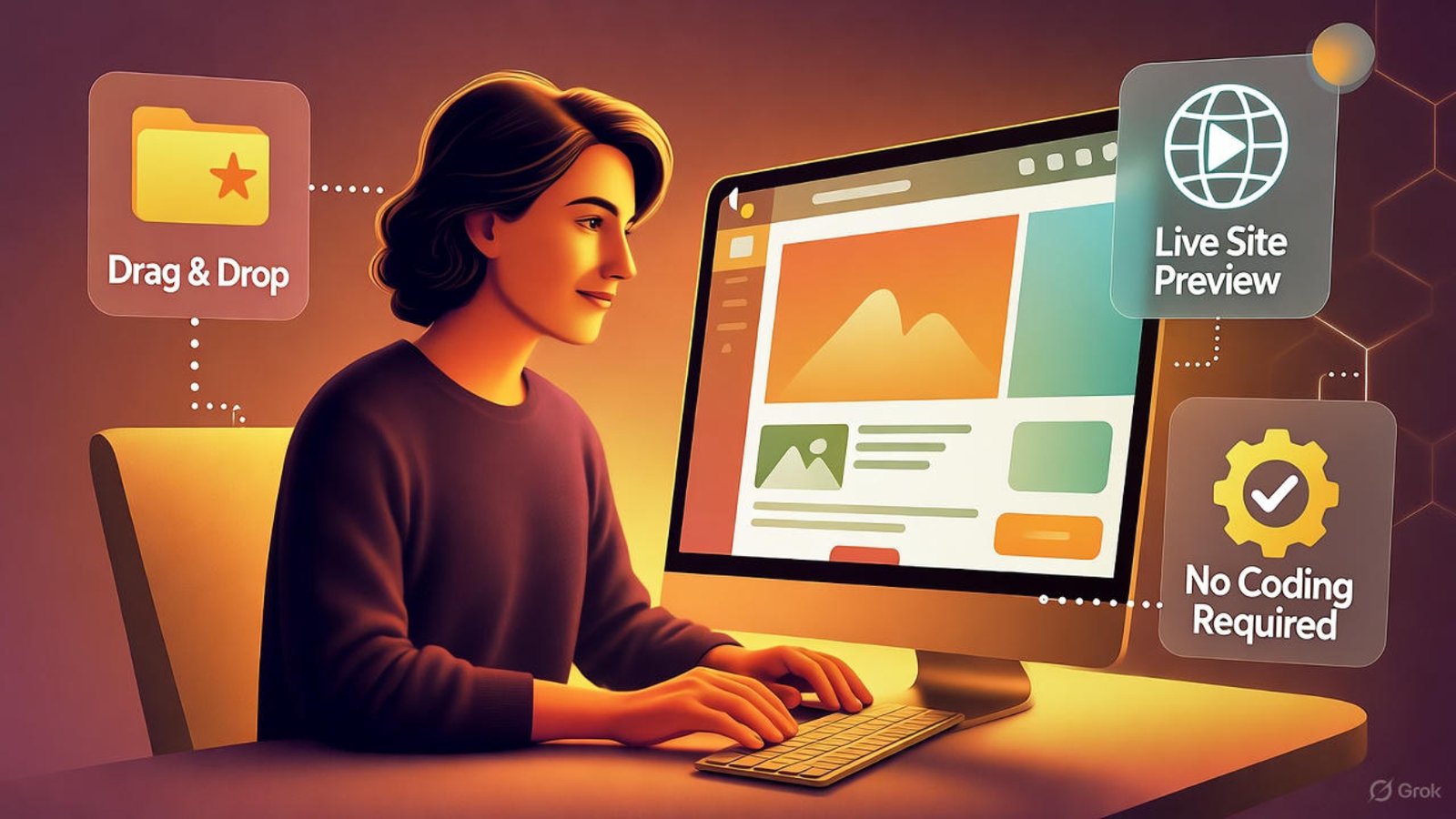
Beginner using Wix drag-and-drop editor to build website

Build a Wix Website Without Coding in 2026

In 2026, launching a website no longer requires technical skills or a background in web development. If you’re a startup founder, freelancer, or small business owner, learning how to build a Wix website without coding can be one of the smartest moves for your brand. With Wix’s user-friendly drag-and-drop editor and built-in tools, building a professional online presence is now simpler than ever — and this guide shows you exactly how to do it.


Why Choose Wix for Code-Free Website Building?

Wix has earned its place among the top website builders globally due to its flexibility, modern templates, and ease of use. If you’re looking to design your site without coding knowledge, Wix is an ideal choice.

According to Wix, more than 250 million users rely on the platform to power their websites. Whether you’re building a blog, an eCommerce store, or a personal portfolio, Wix’s tools are designed to help you achieve that without writing a single line of code.


Getting Started: What You Need Before Building

Before you dive into design, it helps to gather a few essentials:

  • A clear website goal (e.g., bookings, portfolio, sales)
  • High-quality images or logos
  • A short brand description or tagline
  • An idea of your preferred layout or style

Once you have these in place, you’re ready to create your Wix account and begin building.


Step-by-Step: Build a Wix Website Without Coding

1. Set Up Your Free Wix Account

Go to Wix.com and sign up for a free account using your email or Google profile. You’ll be asked about the purpose of your website so Wix can suggest templates accordingly.

2. Pick a Modern, Responsive Template

Wix offers hundreds of professionally designed templates. Choose one that fits your industry and allows customization. Templates are responsive, ensuring mobile and desktop compatibility.

💡 Internal link suggestion: Learn more about choosing templates on mrwebapp.com/templates-for-wix-sites

3. Use the Drag-and-Drop Editor

Wix’s visual editor is its core feature. You can drag text, images, forms, and buttons directly onto the page. No code required — just click and customize.


Creating a Strong Visual Experience

Great design doesn’t require a design degree. Wix enables users to manage layout, color schemes, and typography easily. Focus on clarity, brand consistency, and user experience.

Tips for Visual Clarity

  • Use whitespace to make content breathable
  • Stick to two or three brand colors
  • Choose easy-to-read fonts (sans-serif preferred)

💡 Internal link suggestion: Need a designer’s eye? Hire a Wix designer on aounr

aza.mrwebapp.com/wix-design-help


Add Functionality with Wix Apps

The Wix App Market offers tools to boost your site’s power — from contact forms to booking systems and live chat. These are plug-and-play and don’t require any coding.

  • Wix Bookings (for services and appointments)
  • Wix Stores (for online selling)
  • Wix Forms (for capturing leads)

🔗 Explore all apps on the Wix App Market


Mobile Optimization: Build Once, Work Everywhere

In 2026, most web traffic comes from mobile devices. Thankfully, Wix makes it simple to optimize your site for mobile using its Mobile Editor. You can adjust the layout, text size, and elements specifically for smaller screens without affecting the desktop version.


Launching Your Website

1. Connect Your Domain

You can use a free Wix domain (e.g., username.wixsite.com/site) or purchase and connect your custom domain for a more professional look.

💡 Internal link suggestion: Learn how to connect domains on mrwebapp.com/wix-custom-domain-guide

2. Choose a Wix Plan

Free plans are great for experimenting, but premium plans offer more storage, remove ads, and allow domain connections.

3. Hit “Publish”

Once you’re satisfied with your design and layout, click “Publish” to make your site live instantly.


Promoting Your New Wix Website

Launching your site is just the start. Use these tactics to drive traffic:

  • Share on social media platforms
  • Set up a free Google Business profile
  • Blog regularly with Wix’s built-in blog tool
  • Use Wix SEO tools to optimize on-page content

🔗 Learn SEO best practices on HubSpot


SEO Optimization Without Coding

Wix includes built-in SEO tools to help you get found on Google. The Wix SEO Wiz walks you through the basics step-by-step.

Key Areas to Optimize:

  • Page titles and meta descriptions
  • Image alt text
  • Clean, keyword-friendly URLs
  • Fast loading speed and mobile compatibility

You don’t need any HTML knowledge — it’s all managed via simple toggles and fields.


When to Hire a Wix Developer

While Wix is beginner-friendly, you may eventually want advanced design or integrations. A professional Wix developer can help optimize speed, add animations, or structure your content better.

As a Wix designer and developer on aounraza.mrwebapp.com, I help clients build modern, user-focused sites that are fast, functional, and conversion-ready — without technical overwhelm.


Image Placeholder

Alt Text: Beginner using Wix drag-and-drop editor to build website
Caption: Build your Wix site visually without touching code
Description: This image shows a user building a Wix website using the drag-and-drop editor, perfectly illustrating how to build a Wix website without coding.


Frequently Asked Questions (FAQs)

1. Can I build a Wix website without any tech background?
Yes, Wix is designed for non-tech users. Everything is visual and beginner-friendly.

2. How long does it take to build a site on Wix?
Most users can build and publish a simple website within a day.

3. Is Wix free to use in 2026?
Wix offers a free version, but premium features require a paid plan.

4. Can I sell products on my Wix site without coding?
Yes, use the Wix Stores app to manage products, payments, and shipping — no coding needed.

5. Can I move my Wix website to another platform later?
Wix sites can’t be migrated directly, but content can be manually moved if needed.


Ready to Launch Your Wix Website?

Building a Wix website without coding in 2026 is truly achievable — and it’s a smart, scalable option for creators, freelancers, and small businesses alike. If you’re ready to bring your idea to life and need expert help, I offer Wix design and development services crafted to support your growth.

👉 Explore services at aounraza.mrwebapp.com and get started today

Read More:-

Contact Syed Aoun Raza professional web designer and developer

How to contact Syed Aoun Raza

If you’re looking for a professional who blends creativity, technical skill, and business strategy, you’re in the right place. This guide will help you understand

Read More »
Syed Aoun Raza working on web design and development project

Why choose Syed Aoun Raza

When building or improving a website, the choice of designer and developer can determine your brand’s success online. That’s why understanding why choose Syed Aoun

Read More »
CamScanner file too large fix in app settings

CamScanner File Too Large? Fix It 2025

If you’ve ever tried to upload or share a PDF and received a “file too large” message from CamScanner, you’re in the right place. Dealing with a CamScanner file too large issue can derail your workflow, especially when you need to scan documents for business, school, or startup tasks. This guide offers clear, practical solutions to reduce file size, optimize your output, and keep using CamScanner efficiently in 2025.


Why Your Scans Get Oversized on CamScanner

Large file sizes in CamScanner often stem from a few common factors. When you understand the root causes of a CamScanner file too large issue, you can fix it more effectively. Here’s what usually happens:

  • High resolution settings leading to large images
  • Color scans when black-and-white would suffice
  • Many pages combined into one PDF without compression
  • Excessive use of embedded images or background textures
  • No optimization step before exporting or sharing

Once you see which factor applies to you, you can apply targeted fixes.


Step 1: Adjust Scanning Resolution and Quality

Your first line of defense is reducing the scan quality to a level that still meets requirements but lowers size. If you leave the app on ultra-high resolution, you’ll likely hit the “file too large” limit.

How to do it:

  • Open CamScanner → Settings → Scan Quality
  • Choose “Medium” or “Standard” instead of “High”
  • If color isn’t essential, switch to grayscale or black‑and‑white
  • After scanning, review file size before export

By making these adjustments, you reduce the chance of producing an oversized document. According to a blog focused on CamScanner optimization, switching to grayscale significantly reduces final PDF size. scanjig+1


Step 2: Use Compression and Size‑Reduction Tools

If you already have a huge PDF, you don’t need to rescan everything. Use CamScanner’s built‑in or external compression features to fix a CamScanner file too large problem.

Built‑in method:

  • In CamScanner open the document
  • Tap the three‑dot menu → “Compress PDF” or “Reduce Size”
  • Choose a lower quality preset
  • Save as new PDF and check size

External tools:

  • Use online PDF compressors (for example via CamScanner’s web tools)
  • Download to laptop and run Adobe Acrobat “Save as Reduced Size PDF” (if available)
  • Delete unnecessary pages or images within the PDF

This dual approach gives you flexibility; you avoid rescanning and speed up your workflow.


Step 3: Remove Unnecessary Pages or Images

Sometimes your document might not be oversized because of resolution, but simply because it includes redundant pages or heavy image content.

What to check:

  • Are there blank or near‑blank pages? Delete them
  • Are there high‑resolution images (like photos of forms) inserted? Replace them with simple scans
  • If the doc is long, split it into two smaller PDFs

Reducing page count or simplifying images often fixes the CamScanner file too large issue without impacting content quality.


Step 4: Choose the Right Output Format and Sharing Method

The way you export and share scans impacts file size and usability. Even if your scan is optimized, export settings matter.

Best practices:

  • Export as PDF rather than default image formats if possible
  • Use standard A4/Letter size settings if your destination demands it
  • Use cloud sharing links rather than attaching large files directly
  • When emailing, check if the recipient has file‑size limits

For example, switching from high‑resolution JPGs inside the PDF to standard JPEGs can cut size while keeping legibility.


Step 5: Free Up Storage and Update the App

Sometimes the “file too large” message may be misleading—it may instead relate to storage constraints on your device or outdated app behavior.

To fix:

  • Clear device cache and remove unused files
  • Ensure you have sufficient free space before creating large scans
  • Update CamScanner from the official store so you get newer compression algorithms and bug fixes
  • Back up your documents in the cloud in case storage issues cause failures

This will help avoid failed scans or oversized files caused by system limitations rather than CamScanner settings.


Image Placeholder

🖼 Image Prompt:

A mobile screen showing the CamScanner app interface with a warning “File too large”, with highlighted settings adjusting scan quality and a smaller resulting PDF size.

  • Alt Text: CamScanner file too large fix in app settings
  • Caption: Adjusting scan quality to fix CamScanner file too large in 2025
  • Description: This image visually explains the steps to reduce and fix a file too large issue in CamScanner by adjusting quality and compression settings.

Step 6: Use Batch Scanning Smartly and Export Wisely

When you have multiple pages or want to batch‑scan for business use, the CamScanner file too large issue often arises simply because too many pages go into one PDF at high quality.

Tips:

  • Scan 5‑10 pages at a time rather than 50+
  • Name files logically so you don’t need to merge later
  • Use “Save As” to create a lower quality version for sharing
  • Keep master copy high quality but share version compressed

By structuring scanning this way, you avoid bloated files and maintain organization.


Step 7: Check Recipient Requirements and Limits

Often your document may be fine for you but flagged as “too large” by the receiver’s system. So even after optimization, you still face the CamScanner file too large message.

Steps:

  • Ask the recipient what max file size they accept
  • If they require <5 MB, compress further or split the document
  • Consider sending a cloud link instead of file attachment
  • Use ZIP or other archive formats if allowed

Understanding the destination environment helps you adjust appropriately rather than guessing what “too large” really means.


Step 8: Maintain Good Scanning Hygiene for Business or Startup Workflows

Since many readers of this article are business owners, creators or startup teams, you’ll want a repeatable process for scanning without hitting the file‑size roadblock again.

  1. Clean document and place on flat surface
  2. Use medium‑quality scan, grayscale if possible
  3. Preview scan size quickly
  4. If file exceeds threshold, compress before export
  5. Share with recipient or upload to cloud link
  6. Archive the original high‑quality scan separately

Having this structured routine ensures you rarely face “file too large” surprises in a deadline‑driven environment.


  • Check out how we help businesses Build a Wix website in 2025
  • See other guides like Export CamScanner PDFs to Word 2025
  • We also cover mobile workflow solutions in Wix Mobile Optimization Tricks 2026

External Authority References

  • How to reduce PDF size and best practices (ScanJig) scanjig
  • Using online PDF tools and conversion options PDF Editor
  • Download stats and version info for CamScanner (APKMirror) APKMirror+1

FAQs

1. What is considered “too large” for a CamScanner PDF?
It depends on your recipient. Many systems flag PDFs over 10‑20 MB as too large. Better keep it under 5‑10 MB for easy sharing.

2. Does reducing resolution hurt scan quality?
It may slightly, but choosing “medium” quality or grayscale still keeps documents readable and vastly reduces file size.

3. Can I split one big CamScanner PDF into smaller ones?
Yes. Within CamScanner or a PDF editor you can remove pages or divide the document into parts for easier sharing.

4. Do I always need an internet connection to compress a CamScanner file?
Not always. The built‑in app compressor works offline. But cloud sharing or some external tools may need internet.

5. Will deleting images and blank pages always fix large files?
Often yes. Reducing unnecessary content dramatically lowers size, so it’s a good step after adjusting resolution.


Final Thoughts & Call to Action

A bulky scan doesn’t have to derail your workflow. With the right settings, compression steps, and structured scanning routine, you can solve the CamScanner file too large issue quickly and reliably in 2025. If you’re running business‑level scanning tasks, need integration into mobile apps or workflows, or want help optimizing your scanning and sharing setup—visit aounraza.mrwebapp.com. I specialise in mobile workflow and web‑design solutions that keep your content crisp, streamlined and ready to share with confidence.

Ready to optimize your scans and your website? Let’s get started.

Read More:-

Contact Syed Aoun Raza professional web designer and developer

How to contact Syed Aoun Raza

If you’re looking for a professional who blends creativity, technical skill, and business strategy, you’re in the right place. This guide will help you understand

Read More »
Syed Aoun Raza working on web design and development project

Why choose Syed Aoun Raza

When building or improving a website, the choice of designer and developer can determine your brand’s success online. That’s why understanding why choose Syed Aoun

Read More »
How to fix CamScanner not working

How to Fix CamScanner Not Working 2026

CamScanner remains a widely used mobile scanning app for students, business owners, and freelancers. But in 2026, many users still face frustrating issues with the app — it freezes, won’t open, fails to scan, or crashes during export.

If you’re wondering how to fix CamScanner not working, you’re not alone. This guide covers quick and effective solutions to restore your app’s functionality across Android and iOS devices. Whether you’re scanning documents for business or school, these tips will help you get back on track fast.


Common CamScanner Issues in 2026

Before jumping into solutions, let’s identify the most reported problems in the current version of CamScanner:

  • App not opening on Android or iPhone
  • Stuck on loading screen
  • Scan button not responding
  • Export or share feature not working
  • Files not saving to device or cloud
  • CamScanner crashing after updates

Each issue may have a different cause, so we’ll walk through targeted solutions step-by-step.


1. Restart Your Device First

It may sound simple, but restarting your phone clears background processes and resets memory — often fixing minor glitches in CamScanner.

Steps:

  • Power off your phone completely
  • Wait 15 seconds
  • Turn it back on and reopen CamScanner

This method resolves temporary memory conflicts and speeds up app responsiveness.


2. Update CamScanner to the Latest Version

Developers frequently release updates to address bugs, improve performance, and maintain security. If you’re running an older version, this might be the reason CamScanner is not working as expected.

How to Update:

  • Go to Google Play Store or Apple App Store
  • Search for CamScanner
  • Tap Update if available

After updating, relaunch the app to see if the issue is resolved.


3. Clear CamScanner App Cache and Data

Corrupted cache files can prevent apps from loading properly. Clearing them often solves crashing or freezing problems.

On Android:

  • Go to Settings > Apps > CamScanner
  • Tap Storage > Clear Cache
  • Tap Clear Data if needed

On iPhone:

  • iOS does not offer a direct cache clear option
  • You may need to uninstall and reinstall the app

This step resets app settings but usually preserves your documents if they’re backed up.


4. Check App Permissions and Storage Access

If CamScanner can’t access your camera, storage, or microphone, it may crash or fail to scan documents.

Check Permissions:

  • Go to Settings > Apps > CamScanner > Permissions
  • Ensure access to Camera, Storage, and Microphone is granted
  • Restart the app

On iOS, go to Settings > CamScanner and toggle necessary permissions.


5. Free Up Device Storage

Low storage can cause CamScanner to stop saving files or exporting PDFs. Your phone needs enough space for scanned documents and temporary files.

What You Can Do:

  • Delete unused apps
  • Remove large video files
  • Transfer images or files to cloud storage
  • Use tools like Google Files to clean junk

Then, reopen CamScanner and test if files save correctly.


6. Disable Battery Optimization (Android)

Battery-saving settings on Android may prevent CamScanner from running in the background or syncing files.

Steps:

  • Go to Settings > Battery > Battery Optimization
  • Select CamScanner > Don’t optimize
  • Restart your phone

This allows the app to run without restrictions, especially during scanning or file conversion.


7. Reinstall CamScanner If Nothing Works

If none of the above solutions fix the problem, reinstalling the app may be your best option. Make sure to back up your documents to the cloud first.

Reinstall Guide:

  • Delete the CamScanner app
  • Restart your phone
  • Reinstall from the Play Store or App Store
  • Sign in again and restore your backups

This provides a clean slate and removes any broken settings or leftover files.


Image Placeholder

🖼 Image Prompt:

A smartphone screen showing CamScanner app error messages and settings being adjusted.

  • Alt Text: How to fix CamScanner not working
  • Caption: Troubleshooting CamScanner app on mobile in 2026
  • Description: Step-by-step view showing how users can fix CamScanner not working using in-app settings and system tools.

8. Check CamScanner Server Status

Occasionally, the issue isn’t on your end. CamScanner servers might experience downtime due to maintenance or outages.

What to Do:

  • Visit Downdetector
  • Search for “CamScanner”
  • Check live outage reports

If servers are down, you’ll need to wait for their team to restore service.


9. Enable Cloud Backup for File Safety

If you’re reinstalling the app or switching devices, always enable backup to avoid losing important scans.

Use:

  • Google Drive
  • Dropbox
  • CamScanner Cloud

Go to Settings > Cloud Backup in the app and toggle your preferred platform.


10. Try an Alternative Scanner Temporarily

While CamScanner remains a top app, you may need a backup scanner when it’s unresponsive. Some free alternatives include:

  • Adobe Scan
  • Microsoft Lens
  • Scan Hero
  • Notebloc

Install them from your app store and scan documents until your CamScanner issue is fixed.

🔗 External Resource: Microsoft Lens on App Store


FAQs: CamScanner Not Working 2026

1. Why does CamScanner keep crashing after updates?
New versions may conflict with older cache files. Clearing cache or reinstalling usually fixes this.

2. Can I retrieve scans after uninstalling CamScanner?
Yes, if you backed up your files to cloud services like Google Drive or Dropbox.

3. Does CamScanner work offline in 2026?
Yes, it works without internet for scanning and saving files locally.

4. What’s the best alternative to CamScanner?
Adobe Scan and Microsoft Lens are reliable, free alternatives with OCR support.

5. How do I update CamScanner safely?
Use the official Google Play or App Store to ensure you download a clean, secure update.


Final Thoughts — Fix CamScanner Fast

In 2026, CamScanner is still a go-to app, but glitches can disrupt your workflow. From storage issues to outdated versions, most problems are easy to solve with the right steps.

If you’re still facing trouble, consider getting personalized help — or switching to a lighter, faster scanner temporarily.

👉 Need help with optimizing your mobile site or app workflows?
Visit aounraza.mrwebapp.com — I help creators, freelancers, and startups build fast, mobile-first websites with intuitive UX and conversion-focused design.

Read More:-

Contact Syed Aoun Raza professional web designer and developer

How to contact Syed Aoun Raza

If you’re looking for a professional who blends creativity, technical skill, and business strategy, you’re in the right place. This guide will help you understand

Read More »
Syed Aoun Raza working on web design and development project

Why choose Syed Aoun Raza

When building or improving a website, the choice of designer and developer can determine your brand’s success online. That’s why understanding why choose Syed Aoun

Read More »
Before and after fixing slow Wix website

Fix Slow Wix Website in 2026

A slow website is more than just a nuisance—it can cost you traffic, leads, and conversions. If you’re running your site on Wix and noticing long load times in 2026, you’re not alone. Many business owners, creators, and entrepreneurs using Wix often ask: “Why is my Wix site so slow?”

In this guide, we’ll walk through proven, up-to-date strategies to fix a slow Wix website, improve your loading times, and keep your visitors engaged. Whether you’re a beginner or already have a live site, you’ll learn easy-to-follow tips that actually work.


Why Your Wix Website Might Be Slowing Down

Before we fix the problem, let’s look at what’s causing it. Some common culprits behind a sluggish Wix site include:

  • Too many large images
  • Overuse of animations and effects
  • Unoptimized mobile design
  • Slow third-party apps or widgets
  • Outdated Wix templates

These issues are easy to overlook, but they can quietly drag down your site’s performance over time.


Run a Speed Test First (Wix-Specific Tools)

The first step is measuring your site’s current performance. Use Wix Site Speed Dashboard (available in your Wix Editor) or external tools like PageSpeed Insights to analyze performance.

These tools help identify slow-loading elements, oversized images, or heavy scripts. Take note of what’s dragging the page down—this is where we start optimizing.


Optimize Images the Right Way

One of the most common reasons users need to fix a slow Wix website is oversized images.

📌 Image Optimization Checklist:

  • Use JPG for photos and PNG for graphics with transparency.
  • Compress images with tools before uploading.
  • Enable lazy loading in your Wix image settings.
  • Avoid setting image widths above 2000px unless necessary.

Even one unoptimized image can cause major lag—especially on mobile.


Reduce Animations and Effects

Animations may look great, but they can seriously slow your site down. Stick to one or two subtle effects per page. In 2026, Wix still offers beautiful design without overusing transitions.

✅ Pro Tip: Avoid parallax scrolling unless it’s essential. It adds unnecessary load on most devices.


Limit Third-Party Apps and Embeds

Wix’s App Market is powerful, but using too many apps or embeds (like maps, forms, or popups) can increase your load time.

If you’re using multiple apps:

  • Remove any that are not mission-critical.
  • Replace external embeds with native Wix alternatives when possible.
  • Check each app’s performance using Wix’s Developer Tools.

Use a Clean, Lightweight Template

If your site was built years ago or with a heavy template, consider switching to a newer, faster one. Wix regularly updates its templates to align with modern speed and UX standards.

You can rebuild essential pages using a clean layout and migrate content gradually.

Internal link


Mobile Optimization is Critical in 2026

Most traffic in 2026 comes from mobile. If your site lags on smartphones, visitors will bounce.

Use Wix’s Mobile Editor to:

  • Hide large elements (e.g., high-res background images)
  • Use mobile-specific layouts and padding
  • Reduce the number of visible widgets

📈 Wix SEO Guide:


Upgrade to Wix Premium Hosting

Free Wix plans offer limited bandwidth and slower servers. If you’re serious about performance, upgrading to a Premium Plan gives you faster load times, more storage, and better infrastructure.

External Source:


Image Placeholder

🖼 Image Prompt:

A split-screen view showing a slow-loading Wix site on the left and an optimized, fast-loading version on the right.

  • Alt Text: Before and after fixing slow Wix website
  • Caption: Comparing slow vs. fast Wix website performance
  • Description: This image shows how optimizing media, design, and hosting can fix a slow Wix website in 2026.

Boost Speed With Wix Velo (Advanced Users)

Wix Velo lets developers build custom logic while maintaining performance. If you use it correctly, it won’t slow your site. Minimize custom scripts and test each function to avoid conflicts.

Use Wix’s built-in code panel debugger to spot lagging elements.

External Source:


Clear Cache and Test on Real Devices

Wix may cache older versions of your site. Always publish updates and test your site in incognito mode or using tools like

Checking performance on mobile networks (3G/4G) can reveal issues not seen on fast Wi-Fi.


When to Hire a Wix Expert

If you’ve tried all the above and your site still lags, it’s time to bring in professional help. An experienced Wix designer and developer can:

  • Audit your entire site
  • Rebuild key pages for speed
  • Implement advanced optimization using Velo or custom code

🔗 Ready to upgrade your site?


FAQs: Fixing a Slow Wix Website

1. Why is my Wix website still slow after optimizing images?
There may be too many apps or scripts running in the background. Try simplifying your page layout.

2. Can I speed up Wix on mobile only?
Yes, use the Mobile Editor to hide large content or adjust layout for better mobile speed.

3. Are Wix Premium Plans faster?
Yes. Upgrading gives you access to faster servers and better bandwidth.

4. Does Wix compress images automatically?
Wix does apply some compression, but it’s best to optimize images yourself before uploading.

5. What’s the best tool to test Wix site speed?
Use PageSpeed Insights for general performance and Wix’s Site Speed Dashboard for platform-specific data.


Final Thoughts

Speed isn’t just about performance—it’s about professionalism. If you’re building your brand on Wix in 2026, don’t let a slow site hold you back.

Whether you’re just starting out or running a full eCommerce store, you can fix a slow Wix website with a few focused improvements. Need help?

👉 Visit aounraza.mrwebapp.com to connect with a professional Wix designer and developer. Let’s build a faster, better web presence together.

Read More:-

Contact Syed Aoun Raza professional web designer and developer

How to contact Syed Aoun Raza

If you’re looking for a professional who blends creativity, technical skill, and business strategy, you’re in the right place. This guide will help you understand

Read More »
Syed Aoun Raza working on web design and development project

Why choose Syed Aoun Raza

When building or improving a website, the choice of designer and developer can determine your brand’s success online. That’s why understanding why choose Syed Aoun

Read More »
Dashboard showing prompt usage and free ChatGPT 5 access status

Free ChatGPT 5 Access for Prompts 2025

Want to use ChatGPT 5 to generate ideas, content, code, or marketing prompts — without paying every time? If you seek free ChatGPT 5 access for prompts, this guide helps you discover legitimate ways to tap into it in 2025. I’ll walk you through tools, strategies, precautions, and best practices so you can make the most of this powerful model.

Let’s begin.


What “Free ChatGPT 5 Access for Prompts” Really Means

First, a bit of clarity. When we say “free ChatGPT 5 access for prompts,” we mean:

  • Using ChatGPT 5 (or equivalent advanced model) without paying each time
  • Access that allows you to input prompts freely (within some limits)
  • Methods that are legal, sustainable, and safe

Because providers often enforce quotas or usage caps, “free access” rarely means infinite use. However, with smart strategies, you can maximize your prompt volume and reduce cost barriers.


Why Free Access Matters in 2025

AI tools are increasingly central to content creation, marketing, development, and more. But frequent usage can rack up costs — especially if you rely on paid tiers.

By gaining free ChatGPT 5 access for prompts, you:

  • Reduce your operating costs
  • Experiment more freely with ideas and workflows
  • Test new concepts before scaling to paid plans

Moreover, as AI models evolve, free mediums often serve as gateways for creators, startups, and innovators who can’t yet commit to large budgets.


Real Ways to Get Free ChatGPT 5 Access for Prompts

Here are methods you can apply now to access ChatGPT 5 prompts without constant payment.

1. Leverage Free Trials or Credits

Many platforms using ChatGPT offer introductory credits or free tiers. Sign up and claim your bonus allocation.

  • OpenAI and partner integrations sometimes grant trial usage
  • Third‑party platforms may offer “starter” credits
  • Referral programs or contests often reward usage bonuses

These credits let you experiment with free ChatGPT 5 access for prompts within a limited window — but they are valuable for building workflows.

2. Use Aggregator or Proxy Platforms

Some AI portals pool API access to provide users with a “free tier” experience.

  • These platforms distribute access costs among many users
  • They may offer rate-limited free tiers with premium upgrades
  • Always vet their legitimacy, privacy policy, and terms

Through trusted aggregators, you may get more prompt volume than with standard free accounts.

3. Participate in Beta or Open Access Programs

When models like ChatGPT 5 launch, developers often open beta or early access trials.

  • Join waitlists for new releases
  • Follow AI platform announcements
  • Claim open access before general rollouts

This early access often includes free usage periods, letting you test free ChatGPT 5 access for prompts before full monetization.

4. Use Prompt Chaining & Multipliers

Even in limited accounts, you can optimize prompt usage:

  • Ask ChatGPT: “Generate 50 prompt ideas about topic X”
  • Use those ideas as input in that same session
  • Each initial prompt yields many derivative prompts

This method effectively magnifies your prompt bandwidth, applying especially to free ChatGPT 5 access for prompts accounts.

5. Combine with Alternative Models

When ChatGPT 5 usage is restricted, offload some tasks to other models:

  • Use GPT‑4, Claude, or open-source LLMs for lighter tasks
  • Reserve ChatGPT 5 for high-value prompts
  • Cross‑model workflows help you squeeze value from free tiers

You’ll stretch your budget while still harnessing advanced models when needed.


Tips for Safely Using Free Access

Not all “free access” tools are authorized. Some may breach OpenAI’s policies or risk your account. Always check:

  • Terms of service
  • Data privacy provisions
  • Whether API keys or personal credentials get exposed

Monitor Usage & Avoid Spikes

Bursts of many prompts can trigger throttling or bans. Instead:

  • Pace your usage
  • Batch prompts strategically
  • Avoid sending large volumes in quick succession

This helps maintain consistent free ChatGPT 5 access for prompts.

Backup Your Work

Free tiers may vanish or reset unexpectedly. Always:

  • Save prompt outputs locally
  • Export your prompt library
  • Archive workflows

This ensures continuity even if access changes.


Sample Workflow for Free Prompt Access

Here’s how you might allocate your prompt resources in 2025:

  1. Use your free credits or a proxy platform to get initial access
  2. Submit a “generator” prompt: “List 30 fresh content ideas for AI marketing”
  3. Use those 30 in subsequent prompts
  4. Route simpler tasks to GPT‑4 or lighter models
  5. Save top prompts to your personal library
  6. Monitor consumption and pause before hitting limits

This approach helps you sustain free ChatGPT 5 access for prompts while doing meaningful work.


Benefits & Downsides of Free Prompt Access

Benefits

  • Cost savings
  • Opportunity testing and experimentation
  • Faster ideation and content generation

Downsides & Risks

  • Usage limits or throttles
  • Performance degradation under heavy load
  • Dependency on third‑party tools
  • Potential violation of provider policies

By balancing usage and protecting your account, you can mitigate downsides.


  • Explore my AI tool integration for Wix websites
  • See how I build automated content systems using AI
  • View my portfolio of AI-enhanced website projects

External Authority References


FAQs

Q: Is 100% free ChatGPT 5 access realistic?
A: Rarely. Free access usually comes with limits, but smart usage can stretch it far.

Q: Will OpenAI revoke free accounts?
A: Only if you break terms or exceed acceptable usage.

Q: How many prompts can I send in free mode?
A: It depends on provider or platform. Use monitoring dashboards to check your allotment.

Q: Can I use free access for commercial work?
A: Sometimes yes, depending on the tool’s terms. Always check licensing.

Q: What’s the best fallback when free access ends?
A: Use your saved prompts, switch to paid tiers, or use alternative models.


If you want help building a full prompt library, embedding ChatGPT access in your site, or integrating AI workflows into your business, I’m ready to assist. Visit aounraza.mrwebapp.com and let’s turn your AI ideas into results.

Read More:-

Contact Syed Aoun Raza professional web designer and developer

How to contact Syed Aoun Raza

If you’re looking for a professional who blends creativity, technical skill, and business strategy, you’re in the right place. This guide will help you understand

Read More »
Syed Aoun Raza working on web design and development project

Why choose Syed Aoun Raza

When building or improving a website, the choice of designer and developer can determine your brand’s success online. That’s why understanding why choose Syed Aoun

Read More »
Prompt chaining diagram to use ChatGPT 5 prompts without limits

Use ChatGPT 5 Prompts Without Limits 2025

Wouldn’t it be powerful if you could use ChatGPT 5 prompts without limits in 2025? That’s exactly what savvy creators, marketers, and startups are aiming for. In this article, you’ll learn practical ways to stretch prompt usage, reduce constraints, and stay effective with your AI workflows.

Let’s explore how to bypass common caps, use prompt chaining, and leverage tools that help you enjoy near‑unlimited prompt use.


Understanding Prompt Limits in ChatGPT 5

ChatGPT 5 (or equivalent advanced models) often comes with usage quotas, daily caps, or message limits. Platforms enforce these limits to manage costs and fairness. If you hit those walls, your creative momentum gets blocked.

To get around this, many users learn to use ChatGPT 5 prompts without limits by cleverly managing how and when they send prompts. That means doing more with fewer messages, switching contexts, or distributing load across services.


Strategy 1: Prompt Chaining to Multiply Output

One of the smartest tactics is prompt chaining. Instead of requesting individual tasks, ask ChatGPT to generate multiple prompts in one go:

“Give me 20 blog post ideas for a startup in 2025.”

Then feed those ideas back into the system as subsequent prompts. You convert one message into many tasks. This method maximizes your prompt usage and helps you use ChatGPT 5 prompts without limits in effect.

You can also build prompt templates that auto‑generate new prompts from topics or keywords. These templates act like prompt multipliers.


Strategy 2: Rotate Models & Platforms

When one platform reaches its limit, switch to another. For example:

  • Use GPT‑4 or Claude for lighter tasks
  • Use your ChatGPT 5 seat only for complex prompts
  • Use aggregator platforms that give shared access to advanced models

This rotation ensures you keep working instead of waiting. Over time, you can sustain prompt usage and reliably use ChatGPT 5 prompts without limits by distributing across models.


Strategy 3: Use Platforms with Generous Quotas or “Unlimited” Claims

Some third‑party tools or portals claim “unlimited ChatGPT use.” They often pool API access or manage backends. While they might not deliver truly unlimited usage, they often give you more breathing room.

Before using one, check:

  • Terms of use
  • Response speed
  • Data privacy
  • API key handling

Choosing a well-reviewed tool can extend your prompt capacity while letting you use ChatGPT 5 prompts without limits in everyday work.


Strategy 4: Efficient Prompt Design & Reuse

Well‑crafted prompts save you messages. If a prompt consistently yields good output, reuse it or vary small parts:

  • Swap the topic or tone
  • Insert new keywords
  • Change the target audience

By reusing templates, you minimize waste and stretch your prompt quota. This is essential to use ChatGPT 5 prompts without limits in a sustainable way.


Strategy 5: Use Free Trial Credits & Referral Bonuses

If ChatGPT 5 or its API is new to you, watch for promotional credits or free trials. Many platforms give initial usage credits.

You can also refer colleagues to earn bonus credits. These perks let you freely use ChatGPT 5 prompts without limits—at least initially—while you build your workflows.


Strategy 6: Monitor Usage & Avoid Overload

Even “unlimited” systems often impose hidden rate limits or fair usage caps. If you blast dozens of messages in seconds, you may trigger throttling.

Instead:

  • Pace your prompts
  • Batch tasks
  • Use sleep intervals
  • Avoid sending huge bursts

By staying cautious, you maintain access and can continue to use ChatGPT 5 prompts without limits without triggering blocks.


Sample Workflow: From Idea to Unlimited Prompt Output

Here’s a sample routine to help you implement the above:

  1. Start with a generator prompt:
    “List 30 content ideas for AI tools in 2025.”
  2. Collect those 30 ideas, then feed them one by one into ChatGPT 5.
  3. For less demanding tasks, route to GPT‑4 or Claude as backup.
  4. Save high‑performing prompts in your personal library.
  5. Monitor usage dashboards to avoid hitting quotas.
  6. When limits approach, switch service or pause until refresh.

Using this workflow helps you use ChatGPT 5 prompts without limits in practice rather than only in theory.


Risks & Considerations

  • Tools claiming unlimited access may violate platform terms.
  • Your account or API key might get flagged if usage spikes.
  • Quality might drop if you push prompts too fast.
  • Shared platforms might slow down under heavy load.

Always verify reputation, terms, and security before fully committing.


  • Discover my Wix AI integration services
  • See how I build automated content workflows
  • Check my portfolio showcasing AI-powered sites

  • ChatGPT on Wikipedia — background on the model
  • OpenAI API docs — official usage rules

FAQs

Q: Can I truly use ChatGPT 5 prompts without limits?
A: Not in a strict sense. Even unlimited tools have limits. But you can approximate it via chaining, switching, and careful usage.

Q: Will switching models reduce output quality?
A: Sometimes. Use high‑quality models for crucial tasks, lighter ones for routine jobs.

Q: Is it safe to use third‑party “unlimited” platforms?
A: Only if they have good reputation and proper security. Always vet terms and privacy.

Q: How do I avoid speed throttling?
A: Pace your prompts, batch them, and avoid sending too many in quick succession.

Q: Can I monetize this prompt system?
A: Yes—if you build tools, content, or services using prompt workflows. Just respect platform usage rules.


If you want help building a prompt library, embedding AI tools into your site, or designing workflows that let you reliably use ChatGPT 5 prompts without limits, I’m ready to assist. Visit aounraza.mrwebapp.com and let’s make your AI vision real.

Read More:-

Contact Syed Aoun Raza professional web designer and developer

How to contact Syed Aoun Raza

If you’re looking for a professional who blends creativity, technical skill, and business strategy, you’re in the right place. This guide will help you understand

Read More »
Syed Aoun Raza working on web design and development project

Why choose Syed Aoun Raza

When building or improving a website, the choice of designer and developer can determine your brand’s success online. That’s why understanding why choose Syed Aoun

Read More »
Prompt chaining diagram showing repeated prompts feeding ChatGPT 5

Get Unlimited ChatGPT 5 Prompts Free 2025

Imagine tapping into unlimited ideas, drafts, code snippets, emails, and more—entirely powered by ChatGPT 5. If you wonder how to get unlimited ChatGPT 5 prompts free, this guide delivers real, actionable methods (within ethical and technical boundaries) so you can maximize your AI use in 2025.

I’ll walk you through feasible strategies, tools to use, what to watch out for, and how to avoid pitfalls. Let’s dive in.


What Does “Unlimited ChatGPT 5 Prompts Free” Actually Mean?

Before we dive into how, let’s clarify:

  • “Unlimited” often implies no enforced prompt caps or quotas.
  • “Free” means either no cost or within a free-tier or freemium model.
  • In practice, most AI systems impose usage limits (API quotas, rate limits, etc.).

In fact, many users of ChatGPT or similar services still face restrictions. For example, free or plus users may see message limits, or certain models like GPT‑4 or GPT‑4o may have caps. Reddit+2Reddit+2

Thus, “unlimited” here means as close to unlimited as possible, using tools and tricks that reduce or bypass practical constraints.


How to Get Near‑Unlimited Prompts (Safely and Ethically)

Use Tools that Offer Unlimited or High‑Quota Access

Several third‑party platforms advertise unlimited ChatGPT access or free AI chat tools. For example:

  • Unlimited AI / ChatGPT Free platforms claim “unlimited” chat with no login required. Unlimited AI
  • Tools on Product Hunt that offer “ChatGPT Free and Unlimited Prompts” appear in listings. Product Hunt+1

These may work by aggregating API access, pooling quotas, or optimizing usage. But they may come with tradeoffs—slower speed, limited features, or risk of service disruptions.

Use Prompt Generators That Chain Requests

Another trick is to use a generator prompt—a single prompt that, when fed to ChatGPT, generates multiple new prompts on demand:

  • Some developers sell a “super prompt” that itself outputs new prompts indefinitely. Upwork
  • In practice, you ask ChatGPT: “Generate 10 prompt ideas about [topic]” and feed those back in. This chaining gives you many prompts from one query.

This method doesn’t truly lift usage caps, but it maximizes your output per request.

Use Free API Credits or OpenAI’s Trial Offers

OpenAI (and competitors) often give new users free credits or trial access:

  • Sign up and use your free credit to experiment with GPT‑5 (if available in your region).
  • Some platforms give referral or bonus credits that extend your usage.

This isn’t permanent “unlimited,” but it’s a zero‑cost way to get substantial prompt volume at the start.

Use Proxy or Aggregator Platforms

Some “unlimited” AI chat platforms pool access and allow many users to share a backend:

  • You may use a web portal that connects to OpenAI’s API behind the scenes.
  • These platforms absorb the cost and manage limits internally.

Be cautious: always check terms, data usage, privacy, and legitimacy.


Key Methods to Max Out ChatGPT Prompt Usage

Let’s break things into tactical steps.

1. Prompt Chaining & Prompt Templates

Instead of asking ChatGPT for each prompt, ask it to generate prompts:

“Give me 20 writing prompts about small business marketing.”

Use each generated prompt immediately in your session. You get a multiplier effect.

You can also build prompt templates to reuse across sessions:
“Write me a social media post about X in style Y.”

These templates reduce wasted turns and let you concentrate on content, not rethinking structure each time.

2. Reuse and Remix Previous Prompts

Keep a prompt library. When a prompt gave strong results earlier, reuse it or modify it slightly. This conserves your prompt count.

You can tag them (e.g. “email prompts”, “code prompts”, “ad copy prompts”) for fast access.

3. Use Alternative AI Models When Possible

If ChatGPT 5 is taxed or limited, use alternate models like GPT‑4, Claude, or open-source ones to pick up overflow. Many prompt ideas transfer.

You don’t always need the top model for every prompt—less advanced ones can handle many tasks.

4. Stay Within Fair Use Limits

Even “unlimited” platforms might enforce fair use thresholds. If you send too many requests too quickly, some systems block you temporarily.

Use delays, batch requests, or scheduled prompt sessions. Pace your usage.

5. Use Community Tools & Extensions

There are extensions or Chrome tools that help manage prompt usage more efficiently:

  • Prompt manager tools
  • Clipboard managers to reuse prompt templates
  • Scripted interfaces to auto-send prompt chains

These help get more mileage from your prompt limit without overspending.


Risks & Precautions When Seeking “Unlimited” Access

Beware of Scams or Unauthorized Tools

Some platforms that claim “unlimited” might violate OpenAI’s terms or misuse APIs. Data privacy, account bans, or API key theft are possible. Always vet credibility.

API Security & Key Leaks

If you use API-based tools or proxies, ensure your API key isn’t exposed publicly. Limit permissions and monitor usage.

Performance & Throttling

Even high-quota platforms can slow down or throttle when usage surges. If many users share a backend, you might face lag or temporary blocks.

Version Stability & Accuracy

Using prompt chaining or proxies may route you through versions that are less accurate or older than ChatGPT 5. Always validate critical output.


Sample Workflow to Get Unlimited ChatGPT 5 Prompts Free

Here’s a step‑by‑step example you can try.

  1. Sign up for a tool claiming generous usage (e.g. an unlimited chat portal or aggregator).
  2. Start with a high-level generator prompt: “Create 50 content ideas for tech blogs.”
  3. Copy these 50 prompts and feed them one by one into ChatGPT 5 (in the same session).
  4. When results slow, switch to a backup model (e.g. GPT‑4) for lighter tasks.
  5. Meanwhile, store prompts in your library and tag them.
  6. Periodically check for fresh access credits or bonus programs.

With smart chaining and reuse, you’ll simulate “unlimited prompts” in practice.


Ethical & Responsible Usage

  • Respect rate limits set by platforms or APIs.
  • Don’t overload shared services or abuse free platforms.
  • Acknowledge AI assistance rather than passing results off as 100% your own.
  • Monitor for hallucinations and verify critical outputs.

By using unlimited prompt strategies responsibly, you maintain integrity and avoid account bans.


  • Learn about my Wix web design services, especially for AI tool integration
  • Read a case study on AI‑powered content workflows I built
  • View my portfolio of projects that use AI for productivity


FAQs

Q: Is truly unlimited prompt access possible for free?
A: No. Even tools claiming unlimited access will have hidden limits or fair use constraints.

Q: Will OpenAI ban my account for chaining prompts?
A: Not if you stay within usage rules. Avoid spamming or abusing the service.

Q: Can I get ChatGPT 5 access via API?
A: Possibly, if OpenAI offers it in your region and you have API credits or subscription.

Q: How do I know a “free unlimited” platform is safe?
A: Check reviews, usage policies, data privacy terms, and absence of API key leaks.

Q: What if I hit usage limit mid‑task?
A: Pause, switch to another model, or schedule remaining prompts for later.


If you want help building a prompt library, integrating ChatGPT 5 into your workflow, or embedding unlimited prompt tools into your website, I’m here to help. Visit aounraza.mrwebapp.com and let’s bring your AI ideas to life.

Read More:-

Contact Syed Aoun Raza professional web designer and developer

How to contact Syed Aoun Raza

If you’re looking for a professional who blends creativity, technical skill, and business strategy, you’re in the right place. This guide will help you understand

Read More »
Syed Aoun Raza working on web design and development project

Why choose Syed Aoun Raza

When building or improving a website, the choice of designer and developer can determine your brand’s success online. That’s why understanding why choose Syed Aoun

Read More »