Wix mobile optimization preview 2026

Wix Mobile Optimization Tricks 2026

Mobile optimization is no longer just important—it’s the rule of the web. In 2026, Google continues to rank websites based on their mobile version first. If you’re using Wix to build or manage your site, you need to implement Wix mobile optimization strategies that keep your pages fast, functional, and mobile-friendly.

Whether you’re running an online store, a portfolio, or a business site, poor mobile performance will cost you visitors and conversions. Let’s dive into practical, proven tricks to optimize your Wix site for mobile users in 2026.


Why Mobile Optimization Matters in 2026

Most of your users are visiting your site on their phones. Recent data shows that over 70% of global website traffic comes from mobile devices.

If your mobile layout is cluttered or your site loads slowly, users will leave quickly. Google sees this behavior as a negative signal and may push your rankings down.

That’s why implementing Wix mobile optimization is crucial—not only for UX but also for SEO.


Use Wix’s Mobile Editor Effectively

Wix gives you full control of how your site appears on mobile through the Mobile Editor.

✅ What You Can Do:

  • Adjust font sizes for mobile screens
  • Change button positions and sizes
  • Hide or rearrange elements
  • Use mobile-specific padding and spacing

Keep your layout simple and intuitive. Avoid overcrowded sections or elements that require horizontal scrolling.


Hide Unnecessary Desktop Elements

Some things that look great on desktop just don’t belong on mobile. Large galleries, autoplay videos, and multi-column layouts can confuse or slow down users on smartphones.

To improve Wix mobile optimization, consider hiding:

  • Large background videos
  • Extra decorative elements
  • Sidebars and wide banners

This not only cleans up the layout but also reduces load time on mobile devices.


Compress Images Before Uploading

Images are one of the biggest culprits behind slow mobile performance. Even though Wix compresses images to some extent, uploading already optimized images makes a huge difference.

Make sure your image dimensions are appropriate for mobile views (generally 800px width or less for inline images).


Optimize Mobile Menus for Navigation

Navigation should be thumb-friendly and easy to use. Instead of overwhelming visitors with a complex desktop-style nav bar, use Wix’s built-in hamburger menus or one-page layouts.

Quick Tips:

  • Keep menus short (3–5 key links)
  • Use icons where appropriate
  • Highlight the most important actions (e.g., “Book Now,” “Contact”)

Use Fixed Call-to-Action Buttons

Wix allows you to add floating buttons that stay visible as users scroll. These are great for mobile visitors because they keep your main CTA within reach.

Examples:

  • “Chat with us” buttons
  • “Book Appointment”
  • “Buy Now”

Make sure the buttons are large enough to tap comfortably and don’t cover important content.


Enable Mobile-Optimized Page Transitions

Wix offers transition effects for navigating between pages. While they’re smooth on desktop, some animations may feel clunky or laggy on mobile.

To improve Wix mobile optimization:

  • Use fade transitions instead of slide or zoom
  • Minimize use of complex animations
  • Test how transitions feel on actual mobile devices

Set Mobile-Friendly Font Sizes

Readability is key. A font size that looks fine on desktop may be too small on mobile.

Best Practices:

  • Use at least 14–16px for body text
  • Avoid fancy display fonts on small screens
  • Test legibility on both light and dark backgrounds

Good typography helps retain users and improves time-on-site metrics.


Avoid Using Too Many Apps

The more third-party apps you install, the heavier your site becomes—especially on mobile. Every app adds scripts that may not load efficiently on slower connections.

Stick to apps you absolutely need. If possible, use Wix’s native features instead of third-party add-ons.


Test Your Mobile Performance with PageSpeed Insights

Even after you’ve adjusted your site using Wix’s Mobile Editor, it’s essential to test your mobile performance.

Use Google PageSpeed Insights to:

  • Analyze real-time load speed
  • Identify unused JavaScript
  • Get suggestions for improvements

Wix sites often benefit from minifying CSS and reducing render-blocking resources, which you can manage by simplifying your page element.


Use Wix SEO Tools for Mobile Optimization

Wix’s SEO tools also play a role in mobile performance. Mobile-friendliness is one of Google’s top ranking factors.

Make sure to:

  • Add mobile-optimized meta titles and descriptions
  • Use structured data for articles, products, or services
  • Submit your mobile sitemap to Google via Search Console

Keep Mobile Pages Lightweight

Every second counts on mobile. A page that takes more than 3 seconds to load loses a large percentage of visitors.

Quick ways to keep pages light:

  • Limit the use of sliders and carousels
  • Avoid embedding large media files
  • Split longer content across pages or use accordions

By streamlining your content, you keep mobile users engaged longer.


Update Your Site Regularly

In 2026, mobile devices evolve fast—and so do browser requirements. Regularly review your Wix site’s mobile performance and update:

  • Fonts for legibility
  • Button placements
  • Images and media files
  • Navigation structure

Consistency shows users (and Google) that your site stays current and relevant.


FAQs: Wix Mobile Optimization 2026

1. Does Wix automatically optimize for mobile?
Wix creates a mobile version, but you must manually fine-tune layout, fonts, and elements for true optimization.

2. How do I test my Wix site on mobile?
Use Wix’s Mobile Editor, then check on real devices and tools like BrowserStack or PageSpeed Insights.

3. Are floating buttons good for mobile?
Yes. Floating CTAs help users take action without scrolling, especially on service or eCommerce sites.

4. Should I hide images on mobile?
If an image adds no value or slows down your page, hide it for mobile to improve performance.

5. Can I have a separate mobile version?
Wix doesn’t allow separate mobile-only sites, but the Mobile Editor lets you customize the mobile experience fully.


Ready to Optimize Your Wix Mobile Experience?

Great mobile performance leads to better rankings, lower bounce rates, and happier visitors. With these Wix mobile optimization tricks for 2026, you can ensure your website performs flawlessly across all screen sizes.

👉 Need expert help? Visit aounraza.mrwebapp.com and get your Wix site professionally optimized for mobile, speed, and SEO today.


Read More:-

Contact Syed Aoun Raza professional web designer and developer

How to contact Syed Aoun Raza

If you’re looking for a professional who blends creativity, technical skill, and business strategy, you’re in the right place. This guide will help you understand

Read More »
Syed Aoun Raza working on web design and development project

Why choose Syed Aoun Raza

When building or improving a website, the choice of designer and developer can determine your brand’s success online. That’s why understanding why choose Syed Aoun

Read More »
SEO optimization tips for Wix in 2025

Wix SEO Tips for a Wix Website 2025

If you’re running your business or personal brand on Wix in 2025, one thing’s clear: visibility matters. Search engine optimization (SEO) is no longer optional—it’s essential. But many users still believe Wix can’t compete with platforms like WordPress when it comes to SEO.

That’s not true anymore. With the right Wix SEO tips, you can fully optimize your Wix website and start ranking higher in Google, even in competitive niches. In this guide, you’ll learn practical, proven strategies to increase organic traffic without needing to touch code.


Understand How Wix SEO Works in 2025

Wix has come a long way in recent years. In 2025, it offers native SEO tools that rival other platforms. Wix provides:

  • Clean, indexable URLs
  • Custom meta tags and descriptions
  • Mobile optimization
  • Built-in structured data (schema)
  • SEO Wiz with personalized suggestions

These tools are built directly into the Wix Editor, making SEO more accessible for beginners and busy business owners alike.


Start With Smart Keyword Research

Effective SEO always begins with choosing the right keywords. Avoid broad terms—go for long-tail phrases that match your service or niche.

How to Find the Right Keywords:

  • Look for search terms with low competition and high intent
  • Choose keywords that reflect what people are actually looking for

For example, instead of targeting “photography,” go for “event photographer in Lahore 2025.”

Optimize Every Page with Relevant Meta Data

Each page of your site should have its own title tag and meta description. In Wix, you can find these under SEO Basics in the Page Settings.

Tips for Writing Meta Data:

  • Keep title tags under 60 characters
  • Make meta descriptions between 140–155 characters
  • Include your main keyword naturally
  • Make it sound like a real sentence, not keyword stuffing

This small change alone can boost your click-through rates in search results.


Use Heading Tags (H1–H3) Strategically

Wix allows full control over your headings. Make sure you only use one H1 tag per page, and structure subtopics using H2 and H3 headings.

Use your Wix SEO tips keyword (or its synonym) in one of the H2s, and make sure your headings follow a logical content structure. This not only helps users scan your content—it also signals relevance to Google.


Internal linking is a simple yet powerful SEO tactic. On every new blog post or page, link to at least two or three other pages on your site.

For example:

  • Link to your homepage
  • Link to your most-read blog
  • Link to relevant services (like Wix web design or Wix SEO optimization)

This keeps users engaged and helps search engines crawl your entire site efficiently.


Focus on Mobile Optimization

More than 65% of traffic in 2025 comes from mobile. If your site doesn’t look and load well on phones, you’ll lose rankings—fast.

Use the Wix Mobile Editor to:

  • Adjust spacing and font size
  • Hide desktop-only sections
  • Compress images and background videos

Test your site on different screen sizes regularly. Google’s algorithm prioritizes mobile-first indexing, so this step is non-negotiable.


Add Structured Data (Schema Markup)

Structured data helps search engines understand your content better. Wix automatically adds schema to blog posts, products, and services, but you can add custom markup for:

  • Reviews
  • FAQs
  • Events
  • Courses

Use tools like to check if your page supports schema.


Avoid These SEO Mistakes on Wix

While optimizing, avoid these common errors:

  • Using duplicate meta tags on multiple pages
  • Leaving page titles blank
  • Overloading your homepage with unrelated keywords
  • Using images without alt text
  • Ignoring blog structure and readability

Fixing these issues can have an immediate impact on your rankings.


Track Your SEO Progress with Wix Analytics

After optimizing your Wix website, it’s important to monitor the impact. Use:

  • Wix Analytics Dashboard
  • Google Search Console
  • Google Analytics 4

Track key metrics like impressions, average ranking, and click-through rates. Make adjustments based on real data, not guesswork.


Update Old Content Regularly

Google loves fresh content. Revisit older blog posts or service pages every few months to:

  • Refresh outdated info
  • Add new keywords
  • Optimize meta descriptions
  • Improve readability

This keeps your site competitive and signals ongoing relevance to search engines.

SEO isn’t just about on-site optimization. Building quality backlinks helps increase domain authority. Try:

  • Submitting guest posts
  • Collaborating with influencers
  • Sharing on LinkedIn and relevant communities

The more your content is shared and linked, the better it performs.


FAQs: Wix SEO in 2025

1. Is Wix good for SEO in 2025?
Yes, Wix has advanced SEO features that support proper indexing, mobile design, and keyword control.

2. Can I rank on Google with a Wix site?
Absolutely. Many Wix sites appear on the first page with optimized content and backlinks.

3. Do I need SEO plugins for Wix?
No plugins are required. Wix has built-in tools for all essential SEO functions.

4. How long does SEO take to work on Wix?
Expect results in 3–6 months depending on your content quality and competition.

5. What’s the best SEO tool inside Wix?
Wix SEO Wiz is a great starting point. It provides step-by-step setup tailored to your site.


Ready to Optimize Your Wix Site?

If you’re serious about growth in 2025, following these Wix SEO tips can give your website the visibility it deserves. Whether you’re a freelancer, small business, or brand—SEO can bring long-term results.

👉 Want professional help? Visit aounraza.mrwebapp.com and let’s build a search-optimized Wix website that actually ranks.

Read More:-

Contact Syed Aoun Raza professional web designer and developer

How to contact Syed Aoun Raza

If you’re looking for a professional who blends creativity, technical skill, and business strategy, you’re in the right place. This guide will help you understand

Read More »
Syed Aoun Raza working on web design and development project

Why choose Syed Aoun Raza

When building or improving a website, the choice of designer and developer can determine your brand’s success online. That’s why understanding why choose Syed Aoun

Read More »
Before and after fixing slow Wix website

Fix Slow Wix Website in 2026

A slow website is more than just a nuisance—it can cost you traffic, leads, and conversions. If you’re running your site on Wix and noticing long load times in 2026, you’re not alone. Many business owners, creators, and entrepreneurs using Wix often ask: “Why is my Wix site so slow?”

In this guide, we’ll walk through proven, up-to-date strategies to fix a slow Wix website, improve your loading times, and keep your visitors engaged. Whether you’re a beginner or already have a live site, you’ll learn easy-to-follow tips that actually work.


Why Your Wix Website Might Be Slowing Down

Before we fix the problem, let’s look at what’s causing it. Some common culprits behind a sluggish Wix site include:

  • Too many large images
  • Overuse of animations and effects
  • Unoptimized mobile design
  • Slow third-party apps or widgets
  • Outdated Wix templates

These issues are easy to overlook, but they can quietly drag down your site’s performance over time.


Run a Speed Test First (Wix-Specific Tools)

The first step is measuring your site’s current performance. Use Wix Site Speed Dashboard (available in your Wix Editor) or external tools like PageSpeed Insights to analyze performance.

These tools help identify slow-loading elements, oversized images, or heavy scripts. Take note of what’s dragging the page down—this is where we start optimizing.


Optimize Images the Right Way

One of the most common reasons users need to fix a slow Wix website is oversized images.

📌 Image Optimization Checklist:

  • Use JPG for photos and PNG for graphics with transparency.
  • Compress images with tools before uploading.
  • Enable lazy loading in your Wix image settings.
  • Avoid setting image widths above 2000px unless necessary.

Even one unoptimized image can cause major lag—especially on mobile.


Reduce Animations and Effects

Animations may look great, but they can seriously slow your site down. Stick to one or two subtle effects per page. In 2026, Wix still offers beautiful design without overusing transitions.

✅ Pro Tip: Avoid parallax scrolling unless it’s essential. It adds unnecessary load on most devices.


Limit Third-Party Apps and Embeds

Wix’s App Market is powerful, but using too many apps or embeds (like maps, forms, or popups) can increase your load time.

If you’re using multiple apps:

  • Remove any that are not mission-critical.
  • Replace external embeds with native Wix alternatives when possible.
  • Check each app’s performance using Wix’s Developer Tools.

Use a Clean, Lightweight Template

If your site was built years ago or with a heavy template, consider switching to a newer, faster one. Wix regularly updates its templates to align with modern speed and UX standards.

You can rebuild essential pages using a clean layout and migrate content gradually.

Internal link


Mobile Optimization is Critical in 2026

Most traffic in 2026 comes from mobile. If your site lags on smartphones, visitors will bounce.

Use Wix’s Mobile Editor to:

  • Hide large elements (e.g., high-res background images)
  • Use mobile-specific layouts and padding
  • Reduce the number of visible widgets

📈 Wix SEO Guide:


Upgrade to Wix Premium Hosting

Free Wix plans offer limited bandwidth and slower servers. If you’re serious about performance, upgrading to a Premium Plan gives you faster load times, more storage, and better infrastructure.

External Source:


Image Placeholder

🖼 Image Prompt:

A split-screen view showing a slow-loading Wix site on the left and an optimized, fast-loading version on the right.

  • Alt Text: Before and after fixing slow Wix website
  • Caption: Comparing slow vs. fast Wix website performance
  • Description: This image shows how optimizing media, design, and hosting can fix a slow Wix website in 2026.

Boost Speed With Wix Velo (Advanced Users)

Wix Velo lets developers build custom logic while maintaining performance. If you use it correctly, it won’t slow your site. Minimize custom scripts and test each function to avoid conflicts.

Use Wix’s built-in code panel debugger to spot lagging elements.

External Source:


Clear Cache and Test on Real Devices

Wix may cache older versions of your site. Always publish updates and test your site in incognito mode or using tools like

Checking performance on mobile networks (3G/4G) can reveal issues not seen on fast Wi-Fi.


When to Hire a Wix Expert

If you’ve tried all the above and your site still lags, it’s time to bring in professional help. An experienced Wix designer and developer can:

  • Audit your entire site
  • Rebuild key pages for speed
  • Implement advanced optimization using Velo or custom code

🔗 Ready to upgrade your site?


FAQs: Fixing a Slow Wix Website

1. Why is my Wix website still slow after optimizing images?
There may be too many apps or scripts running in the background. Try simplifying your page layout.

2. Can I speed up Wix on mobile only?
Yes, use the Mobile Editor to hide large content or adjust layout for better mobile speed.

3. Are Wix Premium Plans faster?
Yes. Upgrading gives you access to faster servers and better bandwidth.

4. Does Wix compress images automatically?
Wix does apply some compression, but it’s best to optimize images yourself before uploading.

5. What’s the best tool to test Wix site speed?
Use PageSpeed Insights for general performance and Wix’s Site Speed Dashboard for platform-specific data.


Final Thoughts

Speed isn’t just about performance—it’s about professionalism. If you’re building your brand on Wix in 2026, don’t let a slow site hold you back.

Whether you’re just starting out or running a full eCommerce store, you can fix a slow Wix website with a few focused improvements. Need help?

👉 Visit aounraza.mrwebapp.com to connect with a professional Wix designer and developer. Let’s build a faster, better web presence together.

Read More:-

Contact Syed Aoun Raza professional web designer and developer

How to contact Syed Aoun Raza

If you’re looking for a professional who blends creativity, technical skill, and business strategy, you’re in the right place. This guide will help you understand

Read More »
Syed Aoun Raza working on web design and development project

Why choose Syed Aoun Raza

When building or improving a website, the choice of designer and developer can determine your brand’s success online. That’s why understanding why choose Syed Aoun

Read More »
Dashboard showing prompt usage and free ChatGPT 5 access status

Free ChatGPT 5 Access for Prompts 2025

Want to use ChatGPT 5 to generate ideas, content, code, or marketing prompts — without paying every time? If you seek free ChatGPT 5 access for prompts, this guide helps you discover legitimate ways to tap into it in 2025. I’ll walk you through tools, strategies, precautions, and best practices so you can make the most of this powerful model.

Let’s begin.


What “Free ChatGPT 5 Access for Prompts” Really Means

First, a bit of clarity. When we say “free ChatGPT 5 access for prompts,” we mean:

  • Using ChatGPT 5 (or equivalent advanced model) without paying each time
  • Access that allows you to input prompts freely (within some limits)
  • Methods that are legal, sustainable, and safe

Because providers often enforce quotas or usage caps, “free access” rarely means infinite use. However, with smart strategies, you can maximize your prompt volume and reduce cost barriers.


Why Free Access Matters in 2025

AI tools are increasingly central to content creation, marketing, development, and more. But frequent usage can rack up costs — especially if you rely on paid tiers.

By gaining free ChatGPT 5 access for prompts, you:

  • Reduce your operating costs
  • Experiment more freely with ideas and workflows
  • Test new concepts before scaling to paid plans

Moreover, as AI models evolve, free mediums often serve as gateways for creators, startups, and innovators who can’t yet commit to large budgets.


Real Ways to Get Free ChatGPT 5 Access for Prompts

Here are methods you can apply now to access ChatGPT 5 prompts without constant payment.

1. Leverage Free Trials or Credits

Many platforms using ChatGPT offer introductory credits or free tiers. Sign up and claim your bonus allocation.

  • OpenAI and partner integrations sometimes grant trial usage
  • Third‑party platforms may offer “starter” credits
  • Referral programs or contests often reward usage bonuses

These credits let you experiment with free ChatGPT 5 access for prompts within a limited window — but they are valuable for building workflows.

2. Use Aggregator or Proxy Platforms

Some AI portals pool API access to provide users with a “free tier” experience.

  • These platforms distribute access costs among many users
  • They may offer rate-limited free tiers with premium upgrades
  • Always vet their legitimacy, privacy policy, and terms

Through trusted aggregators, you may get more prompt volume than with standard free accounts.

3. Participate in Beta or Open Access Programs

When models like ChatGPT 5 launch, developers often open beta or early access trials.

  • Join waitlists for new releases
  • Follow AI platform announcements
  • Claim open access before general rollouts

This early access often includes free usage periods, letting you test free ChatGPT 5 access for prompts before full monetization.

4. Use Prompt Chaining & Multipliers

Even in limited accounts, you can optimize prompt usage:

  • Ask ChatGPT: “Generate 50 prompt ideas about topic X”
  • Use those ideas as input in that same session
  • Each initial prompt yields many derivative prompts

This method effectively magnifies your prompt bandwidth, applying especially to free ChatGPT 5 access for prompts accounts.

5. Combine with Alternative Models

When ChatGPT 5 usage is restricted, offload some tasks to other models:

  • Use GPT‑4, Claude, or open-source LLMs for lighter tasks
  • Reserve ChatGPT 5 for high-value prompts
  • Cross‑model workflows help you squeeze value from free tiers

You’ll stretch your budget while still harnessing advanced models when needed.


Tips for Safely Using Free Access

Not all “free access” tools are authorized. Some may breach OpenAI’s policies or risk your account. Always check:

  • Terms of service
  • Data privacy provisions
  • Whether API keys or personal credentials get exposed

Monitor Usage & Avoid Spikes

Bursts of many prompts can trigger throttling or bans. Instead:

  • Pace your usage
  • Batch prompts strategically
  • Avoid sending large volumes in quick succession

This helps maintain consistent free ChatGPT 5 access for prompts.

Backup Your Work

Free tiers may vanish or reset unexpectedly. Always:

  • Save prompt outputs locally
  • Export your prompt library
  • Archive workflows

This ensures continuity even if access changes.


Sample Workflow for Free Prompt Access

Here’s how you might allocate your prompt resources in 2025:

  1. Use your free credits or a proxy platform to get initial access
  2. Submit a “generator” prompt: “List 30 fresh content ideas for AI marketing”
  3. Use those 30 in subsequent prompts
  4. Route simpler tasks to GPT‑4 or lighter models
  5. Save top prompts to your personal library
  6. Monitor consumption and pause before hitting limits

This approach helps you sustain free ChatGPT 5 access for prompts while doing meaningful work.


Benefits & Downsides of Free Prompt Access

Benefits

  • Cost savings
  • Opportunity testing and experimentation
  • Faster ideation and content generation

Downsides & Risks

  • Usage limits or throttles
  • Performance degradation under heavy load
  • Dependency on third‑party tools
  • Potential violation of provider policies

By balancing usage and protecting your account, you can mitigate downsides.


  • Explore my AI tool integration for Wix websites
  • See how I build automated content systems using AI
  • View my portfolio of AI-enhanced website projects

External Authority References


FAQs

Q: Is 100% free ChatGPT 5 access realistic?
A: Rarely. Free access usually comes with limits, but smart usage can stretch it far.

Q: Will OpenAI revoke free accounts?
A: Only if you break terms or exceed acceptable usage.

Q: How many prompts can I send in free mode?
A: It depends on provider or platform. Use monitoring dashboards to check your allotment.

Q: Can I use free access for commercial work?
A: Sometimes yes, depending on the tool’s terms. Always check licensing.

Q: What’s the best fallback when free access ends?
A: Use your saved prompts, switch to paid tiers, or use alternative models.


If you want help building a full prompt library, embedding ChatGPT access in your site, or integrating AI workflows into your business, I’m ready to assist. Visit aounraza.mrwebapp.com and let’s turn your AI ideas into results.

Read More:-

Contact Syed Aoun Raza professional web designer and developer

How to contact Syed Aoun Raza

If you’re looking for a professional who blends creativity, technical skill, and business strategy, you’re in the right place. This guide will help you understand

Read More »
Syed Aoun Raza working on web design and development project

Why choose Syed Aoun Raza

When building or improving a website, the choice of designer and developer can determine your brand’s success online. That’s why understanding why choose Syed Aoun

Read More »
Prompt chaining diagram to use ChatGPT 5 prompts without limits

Use ChatGPT 5 Prompts Without Limits 2025

Wouldn’t it be powerful if you could use ChatGPT 5 prompts without limits in 2025? That’s exactly what savvy creators, marketers, and startups are aiming for. In this article, you’ll learn practical ways to stretch prompt usage, reduce constraints, and stay effective with your AI workflows.

Let’s explore how to bypass common caps, use prompt chaining, and leverage tools that help you enjoy near‑unlimited prompt use.


Understanding Prompt Limits in ChatGPT 5

ChatGPT 5 (or equivalent advanced models) often comes with usage quotas, daily caps, or message limits. Platforms enforce these limits to manage costs and fairness. If you hit those walls, your creative momentum gets blocked.

To get around this, many users learn to use ChatGPT 5 prompts without limits by cleverly managing how and when they send prompts. That means doing more with fewer messages, switching contexts, or distributing load across services.


Strategy 1: Prompt Chaining to Multiply Output

One of the smartest tactics is prompt chaining. Instead of requesting individual tasks, ask ChatGPT to generate multiple prompts in one go:

“Give me 20 blog post ideas for a startup in 2025.”

Then feed those ideas back into the system as subsequent prompts. You convert one message into many tasks. This method maximizes your prompt usage and helps you use ChatGPT 5 prompts without limits in effect.

You can also build prompt templates that auto‑generate new prompts from topics or keywords. These templates act like prompt multipliers.


Strategy 2: Rotate Models & Platforms

When one platform reaches its limit, switch to another. For example:

  • Use GPT‑4 or Claude for lighter tasks
  • Use your ChatGPT 5 seat only for complex prompts
  • Use aggregator platforms that give shared access to advanced models

This rotation ensures you keep working instead of waiting. Over time, you can sustain prompt usage and reliably use ChatGPT 5 prompts without limits by distributing across models.


Strategy 3: Use Platforms with Generous Quotas or “Unlimited” Claims

Some third‑party tools or portals claim “unlimited ChatGPT use.” They often pool API access or manage backends. While they might not deliver truly unlimited usage, they often give you more breathing room.

Before using one, check:

  • Terms of use
  • Response speed
  • Data privacy
  • API key handling

Choosing a well-reviewed tool can extend your prompt capacity while letting you use ChatGPT 5 prompts without limits in everyday work.


Strategy 4: Efficient Prompt Design & Reuse

Well‑crafted prompts save you messages. If a prompt consistently yields good output, reuse it or vary small parts:

  • Swap the topic or tone
  • Insert new keywords
  • Change the target audience

By reusing templates, you minimize waste and stretch your prompt quota. This is essential to use ChatGPT 5 prompts without limits in a sustainable way.


Strategy 5: Use Free Trial Credits & Referral Bonuses

If ChatGPT 5 or its API is new to you, watch for promotional credits or free trials. Many platforms give initial usage credits.

You can also refer colleagues to earn bonus credits. These perks let you freely use ChatGPT 5 prompts without limits—at least initially—while you build your workflows.


Strategy 6: Monitor Usage & Avoid Overload

Even “unlimited” systems often impose hidden rate limits or fair usage caps. If you blast dozens of messages in seconds, you may trigger throttling.

Instead:

  • Pace your prompts
  • Batch tasks
  • Use sleep intervals
  • Avoid sending huge bursts

By staying cautious, you maintain access and can continue to use ChatGPT 5 prompts without limits without triggering blocks.


Sample Workflow: From Idea to Unlimited Prompt Output

Here’s a sample routine to help you implement the above:

  1. Start with a generator prompt:
    “List 30 content ideas for AI tools in 2025.”
  2. Collect those 30 ideas, then feed them one by one into ChatGPT 5.
  3. For less demanding tasks, route to GPT‑4 or Claude as backup.
  4. Save high‑performing prompts in your personal library.
  5. Monitor usage dashboards to avoid hitting quotas.
  6. When limits approach, switch service or pause until refresh.

Using this workflow helps you use ChatGPT 5 prompts without limits in practice rather than only in theory.


Risks & Considerations

  • Tools claiming unlimited access may violate platform terms.
  • Your account or API key might get flagged if usage spikes.
  • Quality might drop if you push prompts too fast.
  • Shared platforms might slow down under heavy load.

Always verify reputation, terms, and security before fully committing.


  • Discover my Wix AI integration services
  • See how I build automated content workflows
  • Check my portfolio showcasing AI-powered sites

  • ChatGPT on Wikipedia — background on the model
  • OpenAI API docs — official usage rules

FAQs

Q: Can I truly use ChatGPT 5 prompts without limits?
A: Not in a strict sense. Even unlimited tools have limits. But you can approximate it via chaining, switching, and careful usage.

Q: Will switching models reduce output quality?
A: Sometimes. Use high‑quality models for crucial tasks, lighter ones for routine jobs.

Q: Is it safe to use third‑party “unlimited” platforms?
A: Only if they have good reputation and proper security. Always vet terms and privacy.

Q: How do I avoid speed throttling?
A: Pace your prompts, batch them, and avoid sending too many in quick succession.

Q: Can I monetize this prompt system?
A: Yes—if you build tools, content, or services using prompt workflows. Just respect platform usage rules.


If you want help building a prompt library, embedding AI tools into your site, or designing workflows that let you reliably use ChatGPT 5 prompts without limits, I’m ready to assist. Visit aounraza.mrwebapp.com and let’s make your AI vision real.

Read More:-

Contact Syed Aoun Raza professional web designer and developer

How to contact Syed Aoun Raza

If you’re looking for a professional who blends creativity, technical skill, and business strategy, you’re in the right place. This guide will help you understand

Read More »
Syed Aoun Raza working on web design and development project

Why choose Syed Aoun Raza

When building or improving a website, the choice of designer and developer can determine your brand’s success online. That’s why understanding why choose Syed Aoun

Read More »
: Image optimization process in Wix editor with compression and resizing options

Optimize Images on Wix 2026

In 2026, website speed and user experience are key to success. One of the easiest ways to improve both is to optimize images on Wix. Whether you’re a business owner, content creator, or entrepreneur, learning how to compress, resize, and properly format images can boost your site’s performance — without sacrificing design.

This complete guide shows you how to do it step by step using Wix’s built-in tools and expert image handling strategies.


Why Image Optimization Matters More in 2026

Modern users expect websites to load fast. If your page takes more than 3 seconds to load, over half your visitors might bounce. According to Google, large, unoptimized images are one of the top reasons for slow load speeds.

Even if you’re using Wix’s drag-and-drop builder, every image you upload affects how your site performs on mobile and desktop.

Beyond speed, optimized images also impact:

  • SEO rankings
  • Conversion rates
  • Mobile usability
  • Bandwidth consumption

Wix does a lot of optimization in the background — but you still need to take manual steps to fully benefit.


Choose the Right Format Before Upload

Before you even add an image to Wix, make sure it’s in the proper format.

  • WebP: Best balance of size and quality. Supported across all modern browsers.
  • JPEG: Great for photos and detailed images with many colors.
  • PNG: Use only for images with transparency or sharp edges like logos.

Avoid using TIFF, BMP, or RAW files — they are too heavy and not web-friendly.

These tools reduce file size before you upload to Wix — a simple but essential habit.


Resize Images to Match Display Needs

Uploading images at 4000px wide when your Wix section only displays them at 1200px wastes bandwidth.

Steps to resize:

  1. Measure your section’s display size in the Wix Editor.
  2. Resize your image to match or slightly exceed that width.
  3. Save the resized image and compress it before uploading.

This approach helps you optimize images on Wix without lowering quality.


Use Wix’s Built-in Compression Tools

Wix automatically compresses uploaded images — but you can control how and where they’re used.

Best practices:

  • Use strips or columns to structure images responsively.
  • Set background images in strip settings instead of using image widgets.
  • Enable lazy loading for media-heavy pages (Wix does this by default now).

When adding galleries, use the Pro Gallery widget, which loads images as users scroll. This keeps load times fast and pages light.


Avoid Overusing Background Videos

While videos can look attractive, background videos often slow down mobile and desktop load speeds. If you use them, optimize their file size to under 5MB and upload via the Wix Video tool.

Instead, consider using:

  • A looping GIF (compressed)
  • A WebP animation
  • A hero image with subtle motion effect (lighter alternative)

These options offer visual interest without hurting your performance metrics.


Enable Lazy Loading for Better Speed

Wix enables lazy loading by default on images and galleries. That means images won’t load until a user scrolls to them, reducing initial load.

Still, you should:

  • Place essential images near the top of the page.
  • Move decorative images further down.
  • Keep image-heavy sections brief or split them across subpages.

These choices help balance visuals and performance.


Optimize for Mobile Responsiveness

An image that looks great on desktop might break on mobile if it’s not scaled properly.

Mobile tips:

  • Use the Wix Mobile Editor to check every image.
  • Resize and reposition elements for smaller screens.
  • Avoid full-width desktop images on mobile unless they scale cleanly.

Using proportional sizing (percentages instead of fixed pixels) also helps maintain layout consistency across devices.


Use Descriptive Alt Text for Every Image

Adding meaningful alt text boosts your SEO and improves accessibility. Wix allows you to add alt text to every image in your media manager.

Good alt text examples:

  • “Handmade leather bag displayed on wooden table”
  • “2026 Wix site showing optimized homepage image”

Avoid vague descriptions like “image1” or “product photo.” Keep it relevant to what users and search engines need.


If your site includes product catalogs or portfolios, you probably rely on galleries. Here’s how to keep them fast:

  • Use thumbnails instead of full-size images
  • Limit galleries to 10–12 items per page
  • Set gallery to load on scroll instead of all at once

These strategies help you optimize images on Wix at scale, without bloating your design.


Monitor Page Speed with Built-In Tools

Use Wix’s Site Speed Dashboard and Google PageSpeed Insights to measure how your images impact load performance.

Wix’s dashboard gives real-time data on:

  • Image load times
  • Compression results
  • Mobile vs. desktop performance

You can access it directly from your site dashboard and receive actionable feedback.


Quick Checklist: Optimize Images on Wix 2026

TaskPurposeTool
Convert to WebPSmallest file sizeTinyPNG / Squoosh
Resize before uploadFaster renderingPhotoshop / Canva
Add alt textSEO + accessibilityWix Media Manager
Enable lazy loadDelayed image loadDefault in Wix
Use galleries smartlyBetter UXWix Pro Gallery
Test in mobile editorResponsive visualsWix Mobile View

  • See how we design Wix sites with lightning-fast visuals
  • Explore our Wix SEO solutions for 2026-ready optimization
  • View recent Wix image-heavy projects in our portfolio

External Authority Sources


FAQs

Q: Do I need to use WebP for every image?
A: No, but WebP is ideal for most photos. Use JPEG when necessary and PNG for transparent images.

Q: Will Wix compress images automatically?
A: Yes, but uploading pre-compressed images gives you better control over quality and size.

Q: How many images should I use per page?
A: Try to keep it under 15 per page, especially if they’re full resolution or high quality.

Q: Can I edit images inside Wix?
A: Yes, Wix has a basic editor to crop, resize, and adjust image settings directly in the media manager.

Q: What happens if I don’t optimize my images?
A: Your site may load slower, rank lower in search engines, and frustrate mobile visitors.


Ready to launch a Wix site that looks great and loads even better?
At aounraza.mrwebapp.com, I specialize in building high-performance Wix websites with fully optimized media, layouts, and SEO. If you’re looking to speed up your site without compromising style, let’s talk today.

Read More:-

Contact Syed Aoun Raza professional web designer and developer

How to contact Syed Aoun Raza

If you’re looking for a professional who blends creativity, technical skill, and business strategy, you’re in the right place. This guide will help you understand

Read More »
Syed Aoun Raza working on web design and development project

Why choose Syed Aoun Raza

When building or improving a website, the choice of designer and developer can determine your brand’s success online. That’s why understanding why choose Syed Aoun

Read More »
Mobile editor in Wix being used to fix layout

Fix Mobile Layout on Wix 2026

In 2026, mobile visitors are likely to make up over 70% of your total website traffic. If your Wix site isn’t displaying correctly on phones or tablets, you’re losing valuable leads. This guide covers how to fix mobile layout on Wix the right way—without coding or guesswork.


Why Mobile Layout Issues Hurt Your Site

Your Wix site might look great on desktop but fall apart on mobile. That’s because the mobile version has its own structure, spacing, and display rules.

Search engines now prioritize mobile usability in their ranking systems. If your layout breaks, buttons overlap, or text is unreadable, both your users and Google will take notice. According to Google, mobile-first indexing means mobile issues can harm your visibility, even if desktop looks fine.

Luckily, Wix offers mobile tools that make fixing layout problems straightforward—if you know where to look.


Start With Wix’s Mobile Editor

Wix has a dedicated mobile editor that lets you customize how your site appears on mobile devices, separate from desktop.

Accessing the mobile view

Inside the Wix Editor, click the smartphone icon on the top toolbar to switch to Mobile View. This doesn’t affect your desktop layout.

What you can do here:

  • Reorder and resize elements
  • Hide non-essential sections
  • Adjust font sizes and line spacing
  • Remove unnecessary space or margins
  • Customize mobile-only menus and buttons

These features give you full control to fix mobile layout on Wix quickly and safely.


Common Mobile Layout Problems—and How to Fix Them

1. Overlapping Text and Elements

Sometimes images, buttons, and text overlap in mobile view due to container issues or excessive padding.

Solution:
Use the “Docking” and “Size” options in the mobile editor. Ensure each element fits within the screen width. Set text boxes to auto-fit and break long lines.


2. Spacing is Too Tight or Too Wide

What looks clean on desktop may create excessive spacing on mobile.

Solution:
Reduce margin/padding on mobile elements. Adjust spacing manually by dragging blocks and checking alignment using Wix’s smart guides.


3. Elements Not Centered Properly

Misaligned buttons or images break visual flow.

Solution:
Use Wix’s alignment tools to center everything horizontally. Avoid using “left” alignment unless necessary for your design.


4. Hidden Desktop Features Appear

Sometimes desktop-only features sneak into mobile view.

Solution:
Hide unwanted sections in mobile using the “Hide from Mobile” option in the settings of each element.


5. Sticky Headers Cover Content

Sticky headers can obstruct page content on mobile.

Solution:
Either disable sticky headers in mobile or reduce their height to make scrolling smoother.


Optimize Fonts and Buttons for Thumbs

Mobile UX is about accessibility. Make sure buttons are large enough to tap with a thumb and that text remains readable.

Mobile Typography Tips:

  • Use at least 14–16px for body text
  • Headers should be bold and 18–22px+
  • Limit fonts to 1–2 families to maintain load speed

Button Guidelines:

  • Minimum button size: 44x44px
  • Leave padding around buttons for easy tapping
  • Use contrast to make CTAs stand out

These changes directly improve how users experience your site—and how likely they are to take action.


Hide or Reorder Elements for Simpler Navigation

Don’t overwhelm your mobile visitors. You can hide elements like decorative sections, image sliders, or videos that don’t serve your main goal.

How to hide elements:

  • Click the element in mobile view
  • Use the settings to “Hide from Mobile”
  • Preview the changes in both mobile and desktop

You can also use anchor links to reduce scrolling on mobile—a smart way to shorten long pages.


Use Mobile-Friendly Layout Tools

Wix offers containers, strips, and repeaters—each with different behaviors in mobile.

Use strips for structure

Strips stack well on mobile and keep content grouped cleanly.

Avoid stacking issues

Don’t place too many elements inside one container. Each item should have breathing room.

This strategy helps keep your mobile layout clean, readable, and consistent.


Test Across Devices, Not Just in Editor

Don’t rely only on Wix’s preview. After you fix mobile layout on Wix, test your site on multiple real devices: Android, iPhone, iPad, etc.

Use free tools like:

  • Google Mobile-Friendly Test
  • Chrome’s device simulator (Inspect Element > Toggle Device Toolbar)

Also, ask real users to browse your site and give feedback. It’s the best way to catch problems automated tools miss.


Keep It Simple: Mobile Design Rules for 2026

  • Prioritize single-column layouts
  • Limit animations and parallax scrolling
  • Use sticky navigation only if helpful
  • Include a prominent call-to-action button

Clean, mobile-first layouts perform better across industries. They also load faster, which is key for mobile SEO.


FAQs

Q: Why does my Wix site look different on mobile?
A: Wix creates a separate mobile layout to optimize small screens, which means you need to adjust elements manually.

Q: Will changing the mobile layout affect desktop view?
A: No, changes made in the mobile editor are exclusive to mobile and won’t affect your desktop layout.

Q: Can I hide content just on mobile?
A: Yes, you can hide any element from mobile view while keeping it visible on desktop.

Q: Do I need coding knowledge to fix mobile layout?
A: Not at all. Wix’s editor is drag-and-drop with visual tools built specifically for mobile.

Q: Is mobile layout important for SEO?
A: Absolutely. Google now ranks based on mobile performance, so poor layout affects your visibility.


Fixing your mobile layout is one of the most powerful steps you can take to improve your website in 2026. If you want a professionally designed Wix site that performs flawlessly on every screen, I can help.

Visit aounraza.https://aounraza.mrwebapp.com/to explore my Wix design and mobile optimization services. Let’s make your website mobile‑ready and business‑smart.

Read More:-

Contact Syed Aoun Raza professional web designer and developer

How to contact Syed Aoun Raza

If you’re looking for a professional who blends creativity, technical skill, and business strategy, you’re in the right place. This guide will help you understand

Read More »
Syed Aoun Raza working on web design and development project

Why choose Syed Aoun Raza

When building or improving a website, the choice of designer and developer can determine your brand’s success online. That’s why understanding why choose Syed Aoun

Read More »
interface showing how to try ChatGPT 5 Pro free version 2025

Try ChatGPT 5 Pro Free Version 2025

Do you want to try ChatGPT 5 Pro free version 2025 before committing? Many creators, startups, and learners prefer to test advanced AI tools before paying. In this guide, I’ll share legit ways to use GPT‑5 Pro features for free or via trial tools. You’ll learn step‑by‑step instructions, best practices, and how our tool on mrwebapp.com helps you access GPT‑5 without cost.


Why you should try ChatGPT 5 Pro free version 2025

GPT‑5 Pro adds enhancements such as longer context handling, file uploads, multi-modal input, and faster response times. Yet, not everyone wants to pay immediately. By trying ChatGPT 5 Pro free version 2025, you get hands-on experience before deciding whether to invest. This approach lets you test workflows, prompt styles, and AI-assisted tasks without risk.


Official OpenAI trial offers and credits

One of the safest routes to try ChatGPT 5 Pro free version 2025 is through OpenAI’s official trials or credit offers.

  • When you sign up on OpenAI, check for bonus credits or limited trials
  • These often include access to Pro features for a short period
  • Use that window for your highest priority tasks

Always monitor usage to avoid exhausting credits on low-priority prompts.


Use third-party platforms that embed GPT‑5

Many AI tools integrate GPT‑5 under the hood and let users test features without requiring a direct Pro subscription.

Platforms like:

  • Writesonic (writing AI)
  • Perplexity.ai (AI search & answers)
  • Notion AI

These let you try ChatGPT 5 Pro free version 2025 indirectly, although sometimes with usage caps or limited prompt length.


Our free tool at MrWebApp for GPT‑5 access

On aounraza.mrwebapp.com, we developed a tool that lets you try ChatGPT 5 Pro free version 2025. It works by connecting through secure APIs with constraints.

Key features:

  • Daily limited free sessions
  • Support for prompt input and file uploads
  • No need to log into OpenAI
  • Clean, user-friendly interface

You can evaluate the quality and usefulness before subscribing elsewhere.

👉 Try it here: Free ChatGPT 5 Pro Tool


Education, research & open access programs

If you study or work in academia or research, you might qualify for free access to GPT‑5 Pro features.

Actions you can take:

  1. Check whether your institution has a partnership with OpenAI
  2. Apply for academic or nonprofit access through OpenAI’s programs
  3. Show project proposals to support use

This method often gives longer-term access than a typical trial.


How to make the most of your free trial access

To get maximum value when you try ChatGPT 5 Pro free version 2025, use these strategies:

  • Focus on tasks where Pro features matter (e.g., long context essays, complex reasoning)
  • Batch your prompts in one session to reduce overhead
  • Save your results immediately (download or copy)
  • Compare free and paid performance to see real benefits

These habits help you evaluate whether you need a subscription.


Precautions and safe use

While exploring free access, stay safe and ethical.

  • Do not use cracked apps or unknown browser extensions
  • Use only trusted tools and platforms
  • Avoid sharing account credentials or private API keys
  • Respect terms of service of OpenAI and partner tools

Sticking to ethical paths protects you from bans or data leaks.


Step‑by‑step: Try GPT‑5 Pro free version 2025 now

  1. Sign up for OpenAI and check for trial credits
  2. Use partner platforms with GPT‑5 integration and free tiers
  3. Visit our free tool at mrwebapp.com and start a session
  4. Input your prompts or upload files
  5. Review AI responses and compare
  6. Decide whether the upgrade is worth it

This roadmap helps you test advanced AI capabilities without paying upfront.


FAQs

Q1: How long does the free trial last?
It depends—some trials last days, others last until credit runs out.

Q2: Will my work vanish after trial ends?
No. You retain your outputs you saved or exported.

Q3: Are free GPT‑5 sessions slower?
Sometimes. When servers are busy, free sessions might queue or slow down.

Q4: Can I use free GPT‑5 for business tasks?
Yes, as long as the platform’s terms allow it.

Q5: Does using the free tool cost money later?
No—unless you choose to upgrade or pay for extra sessions.


Ready to test GPT‑5 Pro without paying?
Head over to mrwebapp.com/free-chatgpt5-pro-access now. Try your first session and explore advanced AI features—completely free and secure.

Related Content:-

Contact Syed Aoun Raza professional web designer and developer

How to contact Syed Aoun Raza

If you’re looking for a professional who blends creativity, technical skill, and business strategy, you’re in the right place. This guide will help you understand

Read More »
Syed Aoun Raza working on web design and development project

Why choose Syed Aoun Raza

When building or improving a website, the choice of designer and developer can determine your brand’s success online. That’s why understanding why choose Syed Aoun

Read More »
Person using a free ChatGPT 5 Pro tool in 2025.

Get ChatGPT 5 Pro Free in 2025

In 2025, ChatGPT 5 Pro is one of the most powerful AI tools available. From content creation to code assistance, users around the world rely on it daily. But many still ask: Can I get ChatGPT 5 Pro free in 2025?

The good news is — yes, you can. While OpenAI offers paid subscriptions for full access, there are smart, safe ways to use GPT-5 Pro capabilities without paying. This guide breaks down real-world options, practical steps, and tools (including ours at aounraza.mrwebapp.com) to help you unlock its features.


What Is ChatGPT 5 Pro?

ChatGPT 5 Pro is OpenAI’s most advanced version of their conversational AI. It includes faster processing, broader context retention, image and voice input, file analysis, and advanced data tools. Compared to the free version, it’s faster, smarter, and more useful for professionals.

However, its monthly fee (~$20–$30) may be a barrier for students, freelancers, and startups. That’s where alternate, ethical access paths become valuable.


Use Limited GPT-5 Access via OpenAI Free Plan

OpenAI occasionally rolls out GPT-5 access in limited sessions for free users. This isn’t full Pro access, but it gives you a glimpse of what’s possible.

To try:

  1. Sign up for a free OpenAI account
  2. Wait for scheduled free-tier GPT-5 trials (announced in the app)
  3. Use it during low-demand windows (usually late night)

This method works best for testing ideas, not long-term use—but it’s a great start.


Try GPT-5 Pro on Third-Party Platforms

Several platforms integrate ChatGPT 5 Pro features into their tools. Some offer free trials or limited-use models that let you benefit without subscribing directly.

You won’t get the full native interface, but you’ll access the same underlying model.


Use the Free ChatGPT 5 Pro Tool by MrWebApp

We’ve developed a free ChatGPT 5 Pro access tool to help users experience GPT-5 features without paying the subscription. It’s designed for:

  • Startups
  • Solopreneurs
  • Students
  • Freelance creators

Visit our tool page at:

👉 mrwebapp.com/free-chatgpt5-pro-access

With limited sessions daily, it provides high-accuracy GPT-5 responses with file input and extended prompt length—no OpenAI login required.


How to Access ChatGPT 5 Pro Free (Legally)

Let’s break down the step-by-step process to get started without violating OpenAI’s terms.

1. Use Our Tool

Our free-access platform connects to GPT-5 APIs in a sandboxed, usage-limited format.

Steps:

  • Visit the tool
  • Input your prompt
  • Get instant GPT-5 Pro-style output
  • Download or save the response

You’ll get 3 free sessions per day, with upgrades available as needed.

2. Join Educational or Research Programs

OpenAI partners with universities and non-profits. If you’re a student or part of a verified research group, you can apply for sponsored Pro access.

Search your university tech or AI departments—or check OpenAI’s

3. Use Shared GPT Access Communities

Reddit and Discord communities often share GPT API sessions, especially during OpenAI’s trial months.

🔗 Look for communities like:

  • r/ChatGPTProUsers
  • AI Tools Hub Discord
  • ChatGPT Builders Forum

Always ensure you’re not sharing sensitive data or breaking any platform rules.


Benefits of Using GPT-5 Pro Free in 2025

While the paid version offers convenience, free access (like ours) still delivers strong advantages:

  • Access to long-form, context-aware conversations
  • File analysis and data handling features
  • Image and vision-based prompt capabilities
  • Expanded token limits for complex queries

For creators and entrepreneurs, this means more value without the upfront investment.


What to Avoid When Looking for Free GPT-5 Pro

Warning: Avoid sketchy browser extensions, cracked apps, or login-sharing services. These often:

  • Contain malware
  • Steal user data
  • Violate OpenAI’s terms
  • Can result in IP bans or data loss

Stick to trusted solutions like mrwebapp.com and verified platforms.


FAQs

Q1: Can I really use ChatGPT 5 Pro for free?
Yes, using trusted tools like mrwebapp.com and official trials.

Q2: Does free access have limits?
Yes, free access usually has daily usage or prompt size limits.

Q3: Is it safe to use free GPT-5 tools?
If the tool is trusted and transparent, like ours—yes, it’s safe.

Q4: Is this method legal and within OpenAI’s rules?
Yes. Our tool uses official APIs within fair use and does not violate policies.

Q5: Do I need an OpenAI account for this?
No. Our tool works independently and does not require OpenAI login.


Ready to Use GPT-5 Pro Without Paying?

Get started with GPT-5 Pro power—free, safe, and simple.

👉 Visit aounraza.mrwebapp.com/free-chatgpt5-pro-access now and explore our tools designed for creators, entrepreneurs, and AI learners.

Don’t wait. Free sessions are limited daily. Experience ChatGPT 5 Pro in 2025—without the subscription.

Related Articles:-

Contact Syed Aoun Raza professional web designer and developer

How to contact Syed Aoun Raza

If you’re looking for a professional who blends creativity, technical skill, and business strategy, you’re in the right place. This guide will help you understand

Read More »
Syed Aoun Raza working on web design and development project

Why choose Syed Aoun Raza

When building or improving a website, the choice of designer and developer can determine your brand’s success online. That’s why understanding why choose Syed Aoun

Read More »
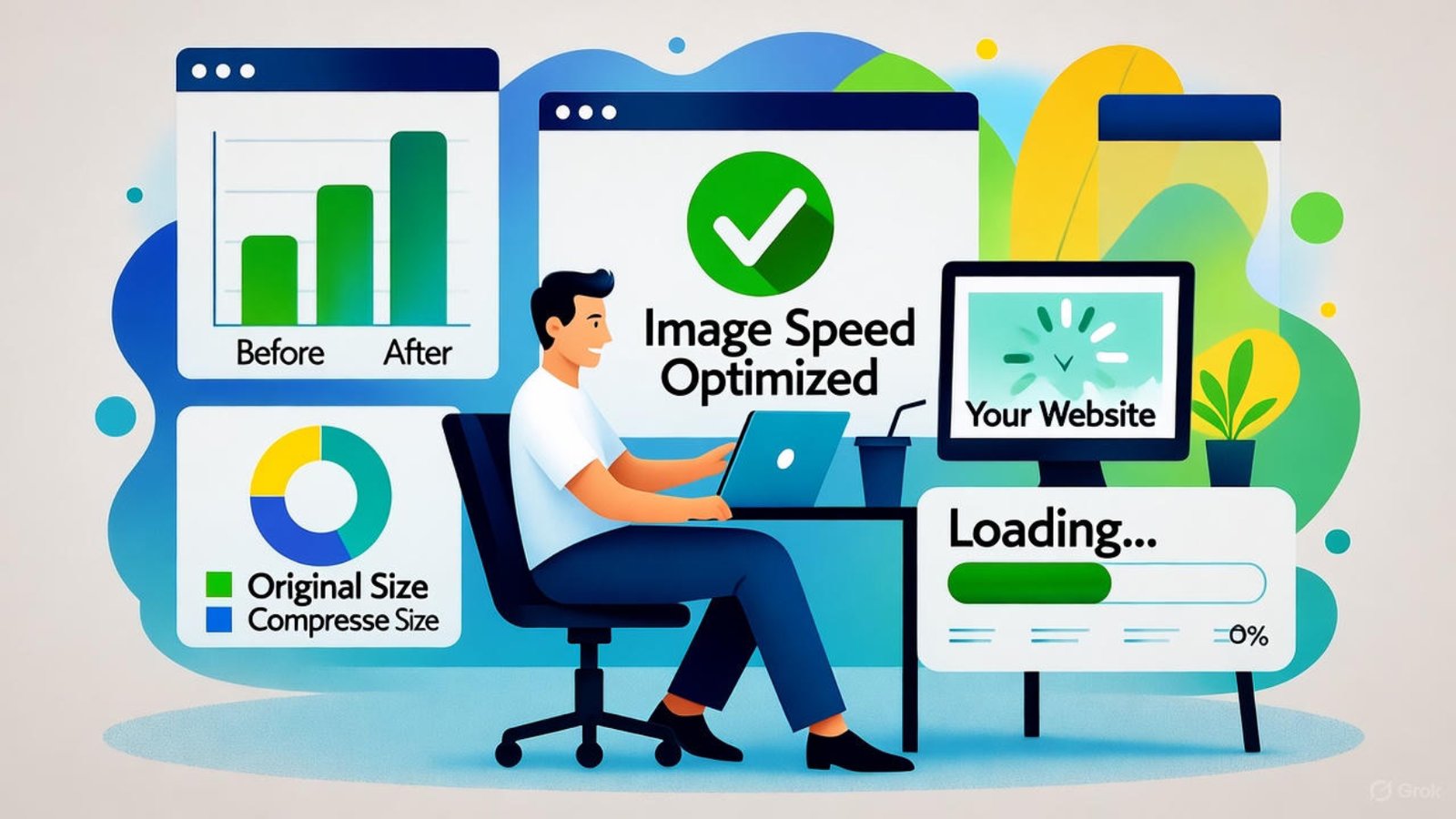
Before and after results of Wix image speed fix 2025.

Wix Image Speed Fix 2025

If your Wix site feels sluggish, your images might be the reason. High-resolution visuals can look great—but they can also drag down performance. This article gives you a practical, professional guide for applying a Wix image speed fix 2025, helping your site load faster and perform better on all devices.

By optimizing image formats, sizes, and usage, you’ll reduce bounce rates, increase SEO scores, and improve user satisfaction—without sacrificing quality.


Why Image Speed Matters in 2025

Modern websites rely heavily on visuals to engage visitors. Yet, in 2025, user expectations around loading speed are stricter than ever. According to HubSpot, over 70% of users say page speed directly influences whether they stay on a website.

Especially on mobile, image-heavy pages load slower—causing drop-offs. That’s why managing media assets is now a top priority for website owners.


Identify Image Issues Using Speed Tools

Start by diagnosing the problem. Use tools like:

These platforms highlight which images are too large or not optimized. Look at metrics like Largest Contentful Paint (LCP) to see if visuals are causing delays.


Choose the Right File Format

Not all image formats are built the same. Picking the right type can drastically cut loading times without reducing visual quality.

Recommended formats:

  • JPG: Great for photos with lots of color depth
  • WebP: Modern format that’s 25–35% smaller than JPG or PNG
  • SVG: Perfect for logos or icons with flat colors

📌 Note: Avoid using PNGs unless transparency is essential. They’re usually larger and load slower.


Resize Images Before Uploading

Uploading massive photos straight from your phone or camera? That’s a speed killer. Resize them to the exact display size they’ll appear on your site.

Best practice:

  • Homepage banners: 1600px wide
  • Thumbnails: 300–600px
  • Full-screen: Max 2000px width
  •  

Compress Images Without Losing Quality

Wix automatically compresses images, but pre-compressing before upload gives better control. Use lossless or smart lossy compression for ideal results.

Recommended tools:

  • Photoshop “Save for Web” feature

Compression reduces file size, which improves loading speeds instantly—especially on slow connections.


Use Wix’s Built-in Optimization Tools

Wix provides native solutions to help manage images more efficiently.

Features include:

  • Auto-formatting for device type
  • Image scaling for mobile & desktop
  • Lazy loading to delay offscreen image load

These are mostly enabled by default, but check under Site Settings → Performance to confirm. You can also preview your mobile layout to make adjustments per device.


Apply Lazy Loading Strategically

Lazy loading is a performance tactic where images load only when they come into the user’s view. Wix supports this out of the box for all image blocks and galleries.

Benefits include:

  • Faster initial page load
  • Reduced data usage for mobile visitors
  • Better performance scores on speed tools

Ensure you’re not placing large media above the fold if lazy loading is enabled—it might cause flickers or delay.


Avoid Overusing Galleries and Background Images

While Wix’s design features are powerful, overuse of galleries or full-screen backgrounds can bloat your pages.

Fix it by:

  • Replacing gallery blocks with static image grids
  • Compressing background videos or replacing them with GIFs or images
  • Avoiding parallax effects unless essential

Minimal design usually results in faster loading.


Naming & Alt Text for SEO and Speed

Well-named image files and relevant alt text contribute to SEO and accessibility. While not directly related to speed, it improves crawl efficiency and reduces unnecessary data requests.

Example:

  • File name: wix-image-speed-fix-2025-home-banner.jpg
  • Alt text: “Homepage banner showing Wix image speed fix 2025”

Keep names concise and descriptive. Avoid generic names like IMG_0021.jpg.


Keep Image Quantity Manageable

More images = more requests = slower load.

Here’s how to stay efficient:

  • Use icons or illustrations instead of photos where possible
  • Limit each page to 10–15 images max
  • Consider breaking long pages into multiple, faster-loading ones

A clean layout also improves mobile usability.


Long-Term Image Management Strategy

Optimization isn’t a one-time task. Regularly audit and clean up your Wix media:

  • Delete unused media from the Wix Media Manager
  • Replace large visuals quarterly with new, optimized versions
  • Use CDN caching settings in Wix for better delivery

Also back up your assets locally in case you need original files later.


FAQs

Q1: What’s the ideal image size for Wix in 2025?
Keep it under 250 KB, and under 1600px in width for large visuals.

Q2: Can I use WebP on Wix?
Yes. Wix supports WebP, which loads faster and compresses better than JPG or PNG.

Q3: Does lazy loading work on mobile?
Absolutely. It works across all devices and is enabled by default on most elements.

Q4: Should I compress logos too?
Yes, especially if they appear in the header or footer on every page.

Q5: How do I test if image speed is fixed?
Use GTmetrix or PageSpeed Insights to re-check LCP and image load recommendations.


Looking to get your Wix site running faster and smoother?
As a professional Wix designer and developer, I help clients create fast, modern, optimized websites that load in seconds.

👉 Visit mrwebapp.com to explore my Wix services and request a performance consultation today!

Related articles:-

Contact Syed Aoun Raza professional web designer and developer

How to contact Syed Aoun Raza

If you’re looking for a professional who blends creativity, technical skill, and business strategy, you’re in the right place. This guide will help you understand

Read More »
Syed Aoun Raza working on web design and development project

Why choose Syed Aoun Raza

When building or improving a website, the choice of designer and developer can determine your brand’s success online. That’s why understanding why choose Syed Aoun

Read More »