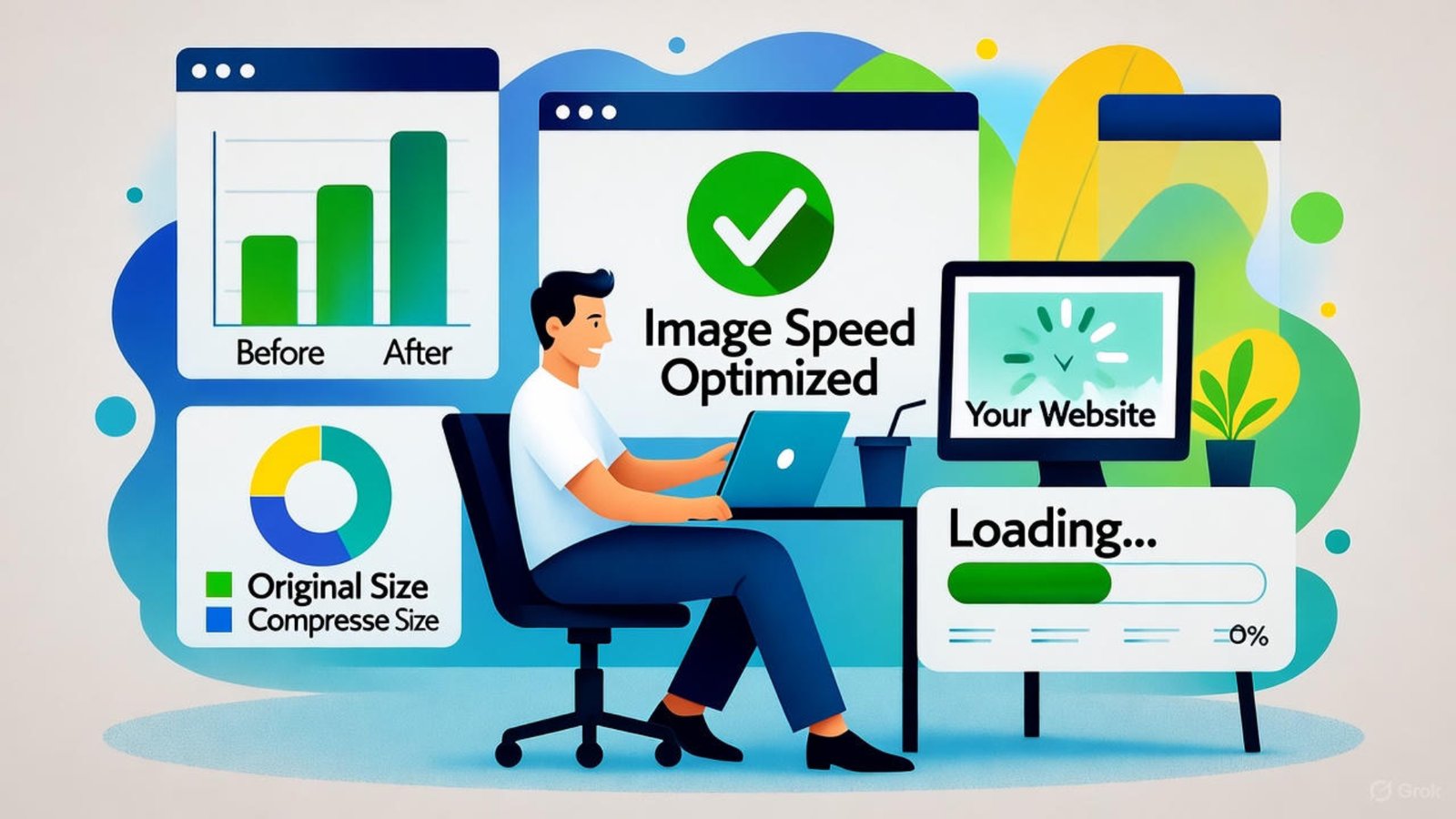
If your Wix site feels sluggish, your images might be the reason. High-resolution visuals can look great—but they can also drag down performance. This article gives you a practical, professional guide for applying a Wix image speed fix 2025, helping your site load faster and perform better on all devices.
By optimizing image formats, sizes, and usage, you’ll reduce bounce rates, increase SEO scores, and improve user satisfaction—without sacrificing quality.
Why Image Speed Matters in 2025
Modern websites rely heavily on visuals to engage visitors. Yet, in 2025, user expectations around loading speed are stricter than ever. According to HubSpot, over 70% of users say page speed directly influences whether they stay on a website.
Especially on mobile, image-heavy pages load slower—causing drop-offs. That’s why managing media assets is now a top priority for website owners.
Start by diagnosing the problem. Use tools like:
These platforms highlight which images are too large or not optimized. Look at metrics like Largest Contentful Paint (LCP) to see if visuals are causing delays.
Not all image formats are built the same. Picking the right type can drastically cut loading times without reducing visual quality.
Recommended formats:
- JPG: Great for photos with lots of color depth
- WebP: Modern format that’s 25–35% smaller than JPG or PNG
- SVG: Perfect for logos or icons with flat colors
📌 Note: Avoid using PNGs unless transparency is essential. They’re usually larger and load slower.
Resize Images Before Uploading
Uploading massive photos straight from your phone or camera? That’s a speed killer. Resize them to the exact display size they’ll appear on your site.
Best practice:
- Homepage banners: 1600px wide
- Thumbnails: 300–600px
- Full-screen: Max 2000px width
-
Compress Images Without Losing Quality
Wix automatically compresses images, but pre-compressing before upload gives better control. Use lossless or smart lossy compression for ideal results.
Recommended tools:
- Photoshop “Save for Web” feature
Compression reduces file size, which improves loading speeds instantly—especially on slow connections.
Wix provides native solutions to help manage images more efficiently.
Features include:
- Auto-formatting for device type
- Image scaling for mobile & desktop
- Lazy loading to delay offscreen image load
These are mostly enabled by default, but check under Site Settings → Performance to confirm. You can also preview your mobile layout to make adjustments per device.
Apply Lazy Loading Strategically
Lazy loading is a performance tactic where images load only when they come into the user’s view. Wix supports this out of the box for all image blocks and galleries.
Benefits include:
- Faster initial page load
- Reduced data usage for mobile visitors
- Better performance scores on speed tools
Ensure you’re not placing large media above the fold if lazy loading is enabled—it might cause flickers or delay.
Avoid Overusing Galleries and Background Images
While Wix’s design features are powerful, overuse of galleries or full-screen backgrounds can bloat your pages.
Fix it by:
- Replacing gallery blocks with static image grids
- Compressing background videos or replacing them with GIFs or images
- Avoiding parallax effects unless essential
Minimal design usually results in faster loading.
Naming & Alt Text for SEO and Speed
Well-named image files and relevant alt text contribute to SEO and accessibility. While not directly related to speed, it improves crawl efficiency and reduces unnecessary data requests.
Example:
- File name:
wix-image-speed-fix-2025-home-banner.jpg
- Alt text: “Homepage banner showing Wix image speed fix 2025”
Keep names concise and descriptive. Avoid generic names like IMG_0021.jpg.
Keep Image Quantity Manageable
More images = more requests = slower load.
Here’s how to stay efficient:
- Use icons or illustrations instead of photos where possible
- Limit each page to 10–15 images max
- Consider breaking long pages into multiple, faster-loading ones
A clean layout also improves mobile usability.
Long-Term Image Management Strategy
Optimization isn’t a one-time task. Regularly audit and clean up your Wix media:
- Delete unused media from the Wix Media Manager
- Replace large visuals quarterly with new, optimized versions
- Use CDN caching settings in Wix for better delivery
Also back up your assets locally in case you need original files later.
FAQs
Q1: What’s the ideal image size for Wix in 2025?
Keep it under 250 KB, and under 1600px in width for large visuals.
Q2: Can I use WebP on Wix?
Yes. Wix supports WebP, which loads faster and compresses better than JPG or PNG.
Q3: Does lazy loading work on mobile?
Absolutely. It works across all devices and is enabled by default on most elements.
Q4: Should I compress logos too?
Yes, especially if they appear in the header or footer on every page.
Q5: How do I test if image speed is fixed?
Use GTmetrix or PageSpeed Insights to re-check LCP and image load recommendations.
Looking to get your Wix site running faster and smoother?
As a professional Wix designer and developer, I help clients create fast, modern, optimized websites that load in seconds.
👉 Visit mrwebapp.com to explore my Wix services and request a performance consultation today!




Add a Comment